How to clip your Kick streams for TikTok and Shorts
· Updated
Kick streams run long. Somewhere in four hours of gameplay there are a handful of moments that would do great on TikTok or YouTube Shorts. Finding them is the hard part.
Here’s how to get from a Kick VOD to clips you can post, by hand or with AI.
1. Find the moments
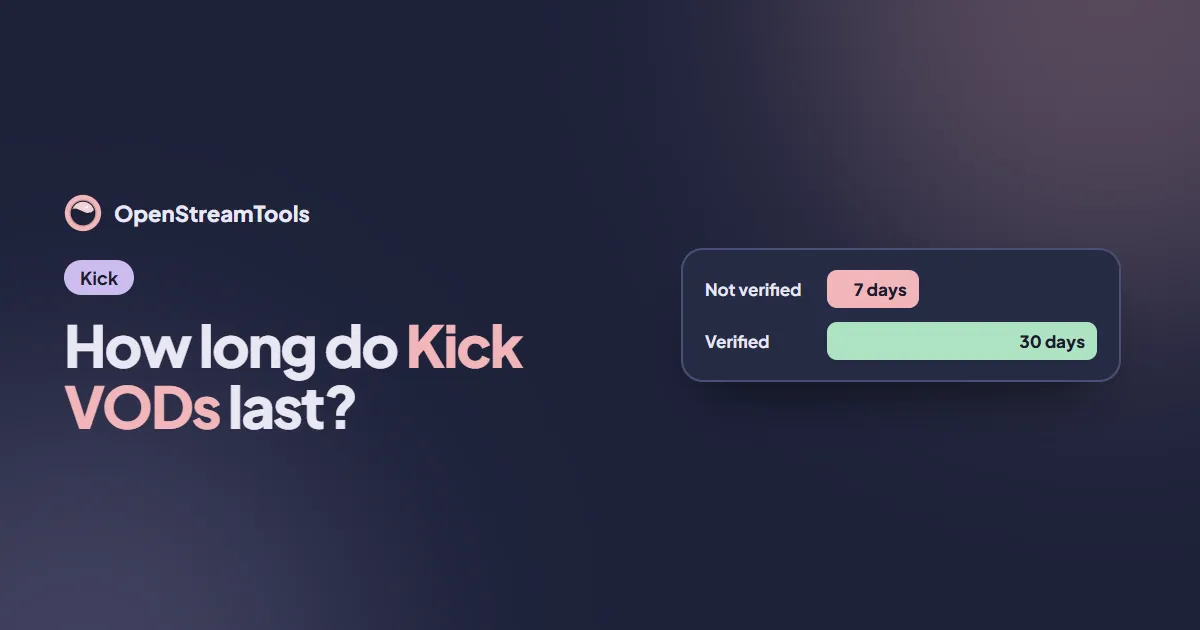
Go through your replay and note the time of every moment that made chat go wild: a clutch play, a fail, a great reaction, a funny line. Kick keeps replays for only 7 or 30 days, so do it soon after the stream.
By hand, that’s watching hours of your own footage. That’s where most clips die.
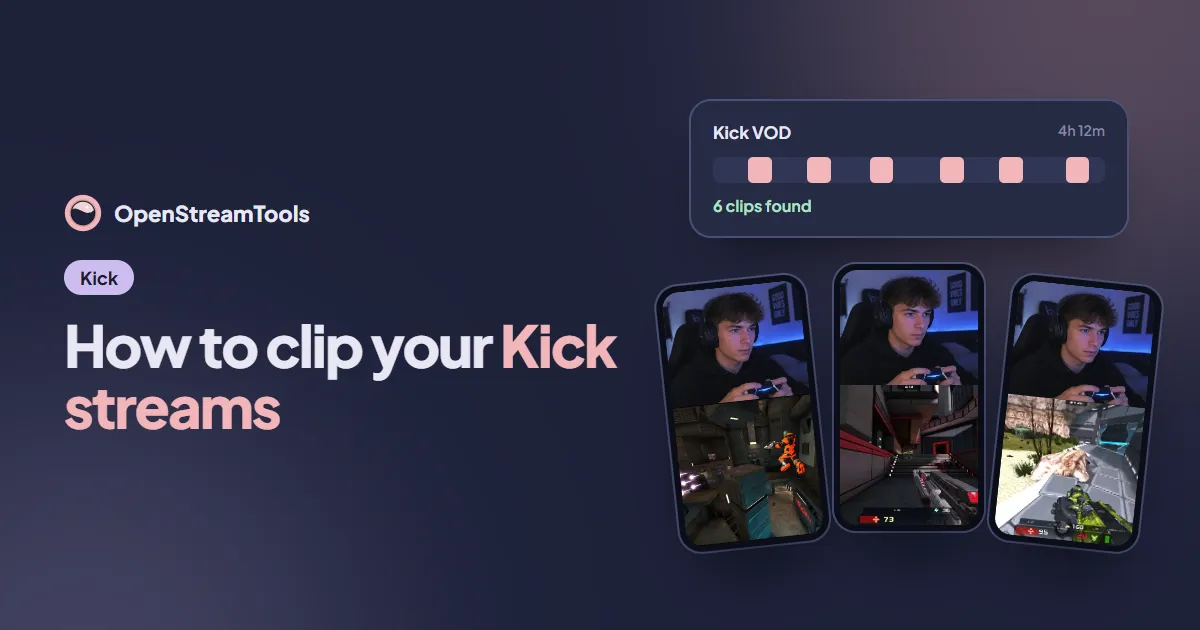
With AI: in the OpenStreamTools desktop app, paste the link to your Kick VOD. The clip finder reads the whole stream, ranks the moments worth posting and gives each one a title. Only want part of the stream? Pick the hours to search. Nothing gets downloaded: the stream plays straight from Kick.
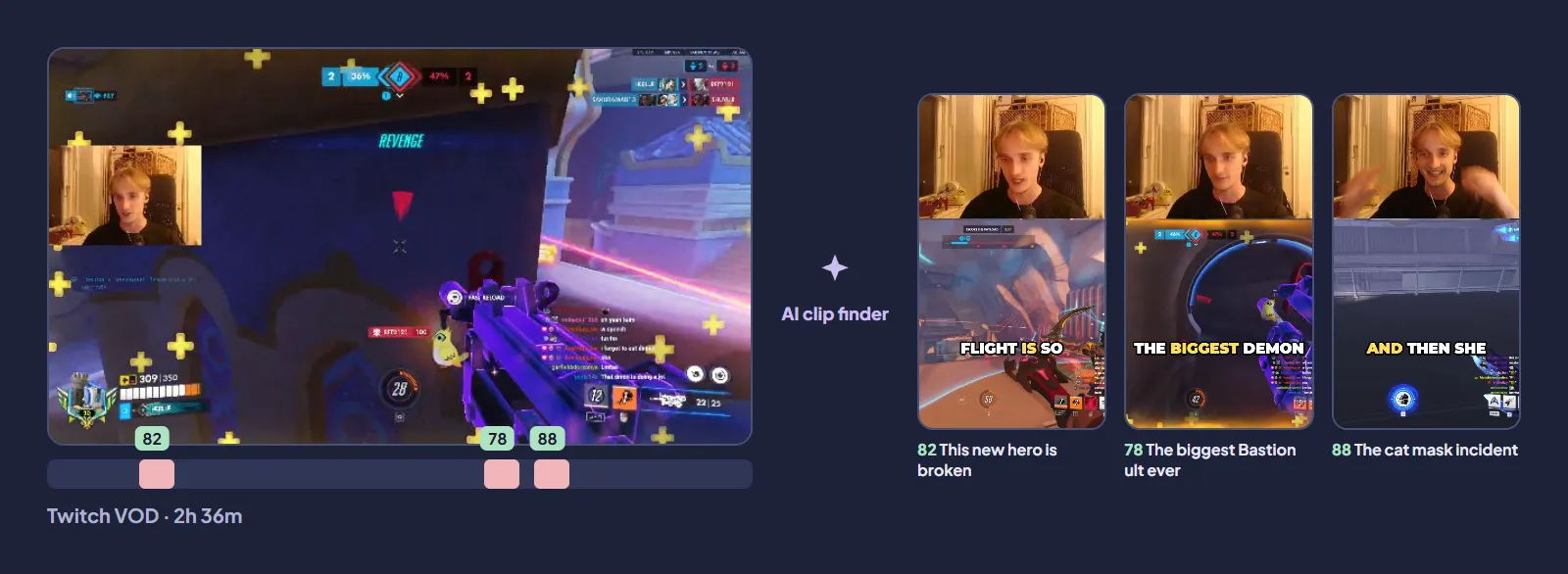
2. Cut it tight
Start right before the moment, not a minute before it. The first two seconds decide whether someone keeps watching. Most good stream clips are 20 to 60 seconds.
The clip finder cuts on whole sentences, so a clip never starts halfway through what you’re saying.
3. Make it vertical
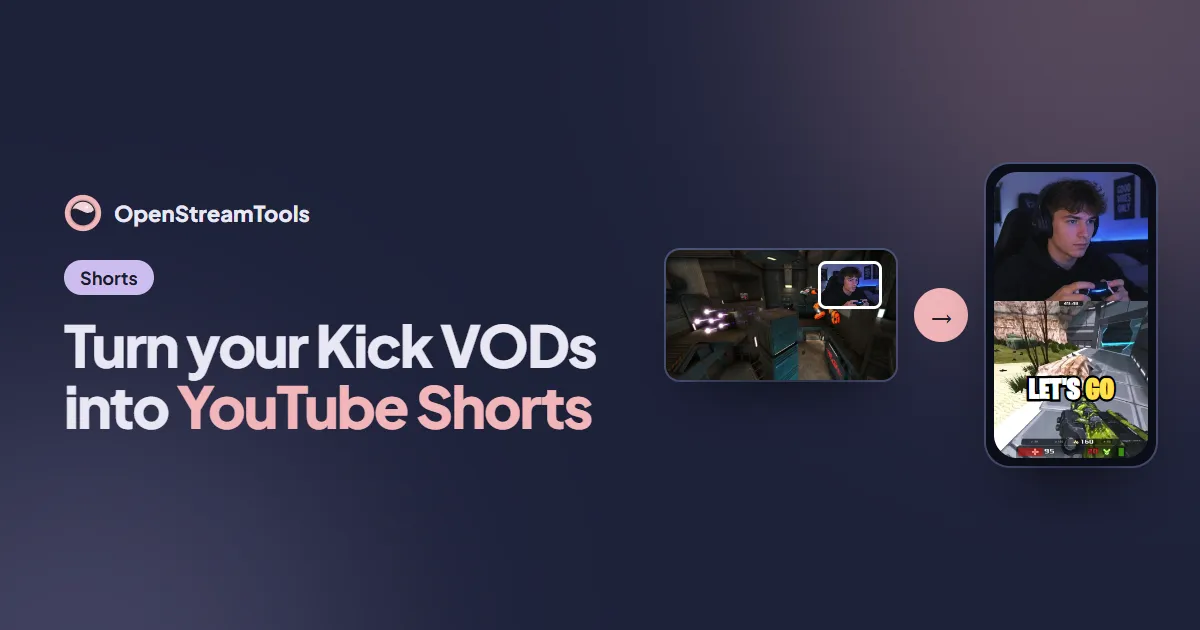
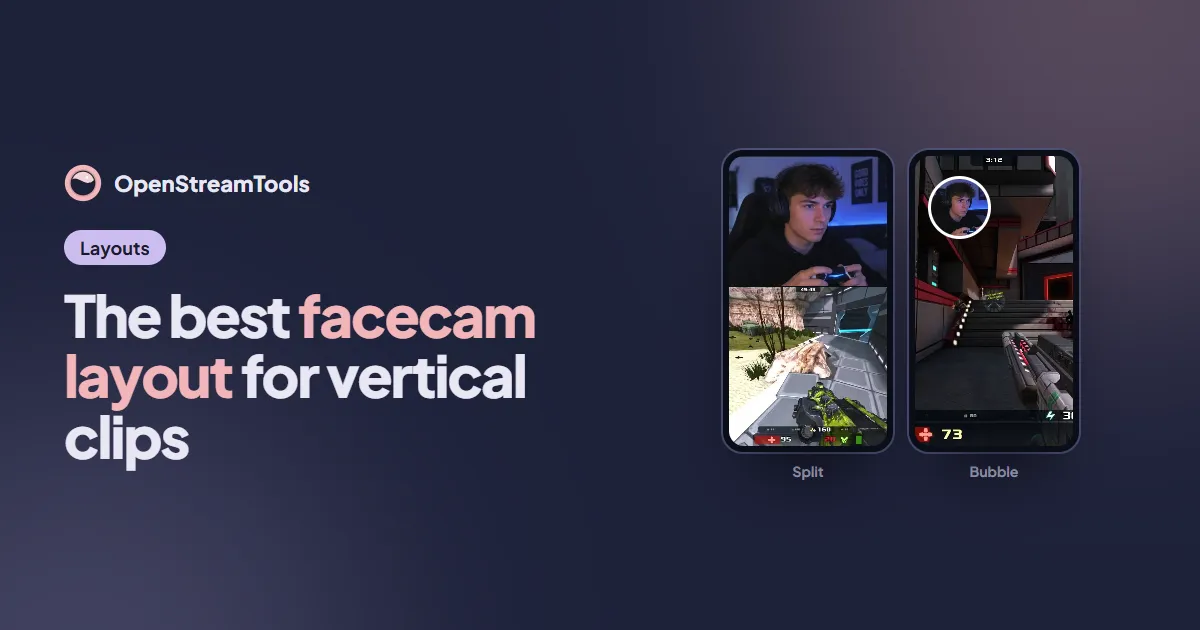
A Kick stream is 16:9, TikTok and Shorts are 9:16. The layout that works for most streamers: your facecam on top, the gameplay below. Our guide on the best facecam layout goes through the options.
The clip finder frames each clip for you as facecam over gameplay, and if you switch scenes in OBS mid-clip, each scene gets its own framing. You can move everything in the editor.
4. Add captions
Most people watch with the sound off. Big, readable captions keep them there. In OpenStreamTools captions come from your own voice, you can edit them sentence by sentence, and they stay in place when you cut the clip.
5. Post it
Export the clip, up to 4K, free and without a watermark. Or post it from the export page to TikTok, YouTube and Instagram at once.
Mark moments while you’re live
Even better than looking for a moment afterwards: marking it when it happens. In the desktop app, press a key during your stream and the minute before becomes a clip, cut from your own OBS recording. It works whatever platform you stream to, Kick included, and it’s free on every plan.
Try it on your last stream
The editor is free, with 4K export and no watermark. The clip finder comes with Starter and Pro, with a 7-day free trial. Get the desktop app, paste your last Kick VOD and see what it finds.
Questions streamers ask
How do I clip a Kick stream?
Find the moment in your VOD, cut 20 to 60 seconds around it, make it vertical with your facecam over your gameplay, add captions and post it. An AI clip finder can do the finding for you on a whole stream.
Is there an AI clip finder for Kick?
Yes. OpenStreamTools reads whole Kick VODs in its desktop app and gives you the best moments as vertical clips. It comes with Starter and Pro, with a 7-day free trial.
Do I need to download my Kick VOD first?
Not for the clip finder: paste the Kick link in the desktop app and it plays the stream straight from Kick. To keep a copy, the app has a free video downloader too.
Can I clip Kick streams in the browser?
The editor runs in the browser. Looking up a Kick link needs the desktop app, because Kick blocks that from servers. After that, the results open in any browser.