The best facecam layout for vertical clips
Your stream is 16:9, the clip is 9:16. Something has to give. The layout you pick decides what people see first, and with stream clips, what people come for is usually two things at once: the moment and your reaction to it.
Here are the four layouts that work, and when to use which.
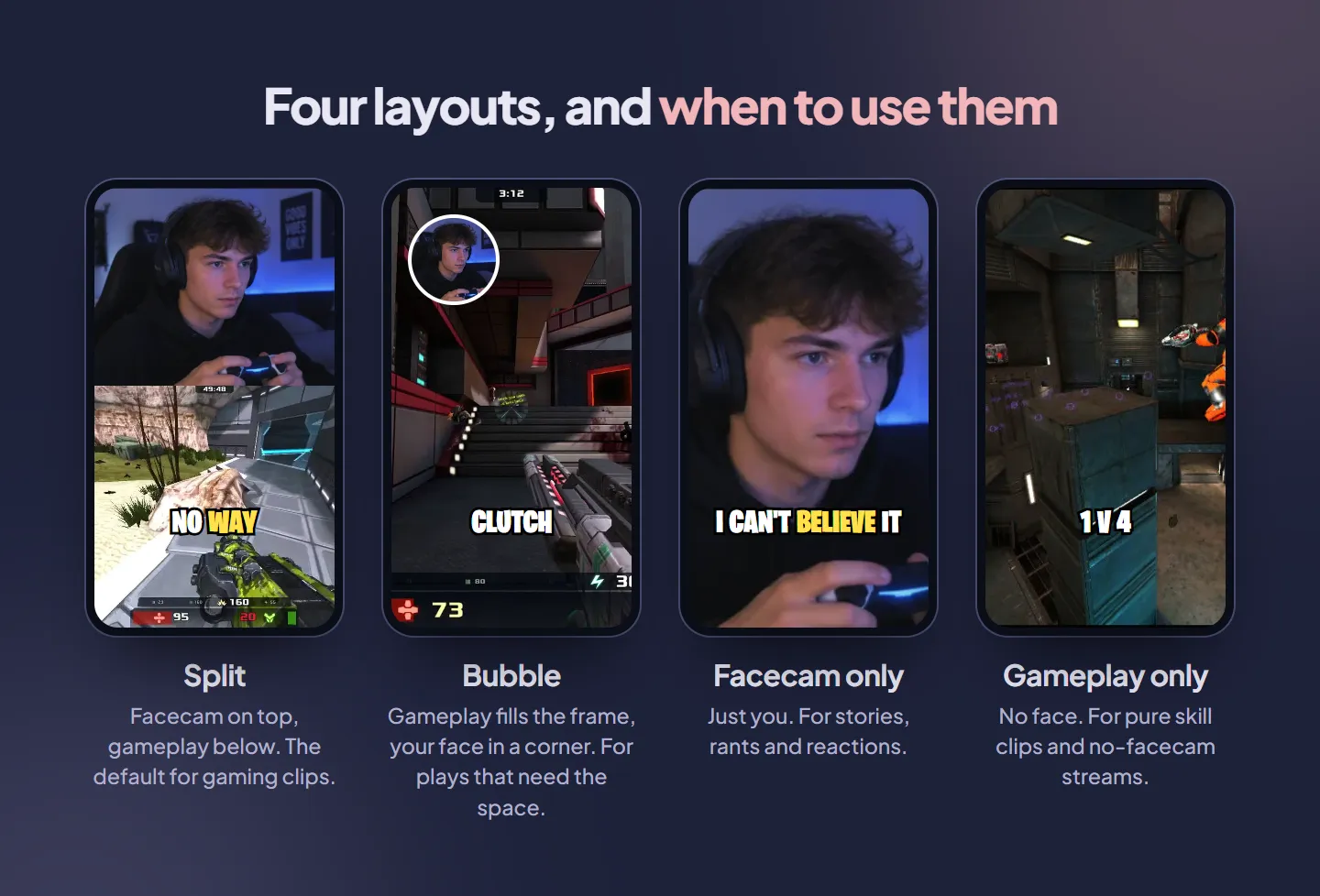
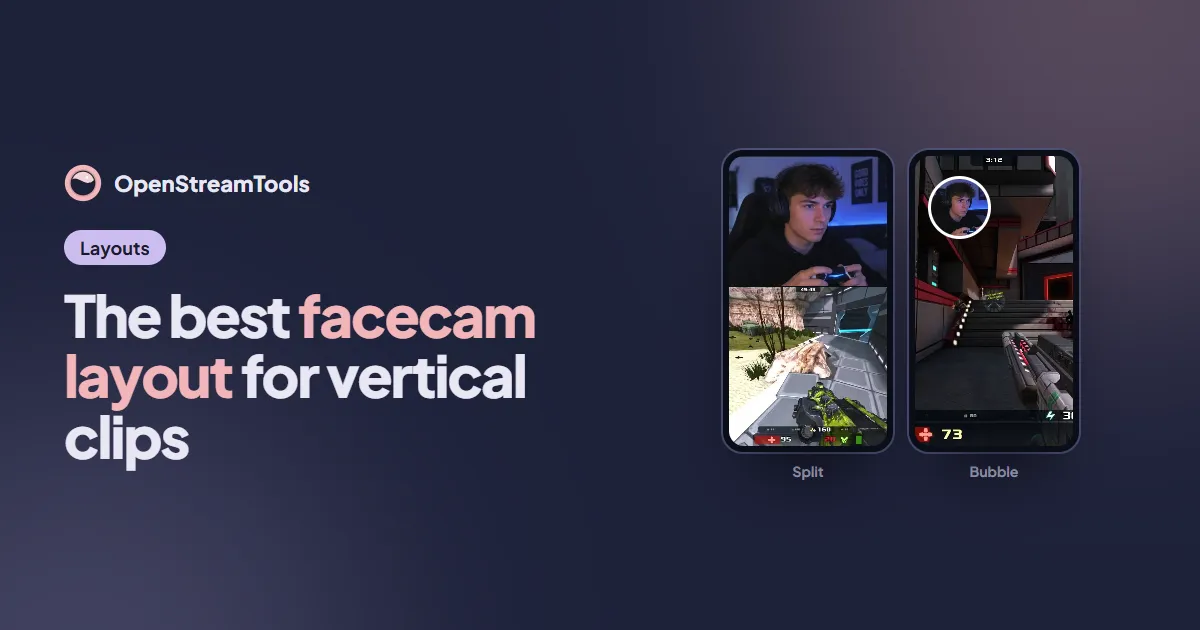
Split: facecam on top, gameplay below
The default for gaming clips, and the right choice most of the time.
- Use it for: most clips. Plays, fails, reactions, anything where your face adds something.
- Facecam: about a third to just under half of the height. Crop tight on your face.
- Gameplay: the rest. Crop to the middle of the screen, where the action is, rather than squeezing the whole 16:9 frame in.
- Captions: on the line between the two, or just below it.
Bubble: gameplay full, your face in a corner
The gameplay fills the frame and your facecam sits in a small round or rounded window.
- Use it for: plays that need the space. Long-range shots, big team fights, anything where a smaller game view would lose the detail.
- Put the bubble in an upper corner, away from the action and away from the right side, where TikTok and Shorts put their buttons.
Facecam only
Just you, filling the frame.
- Use it for: stories, rants, opinions, reactions where the game doesn’t matter. “Let me tell you what happened” clips.
- Crop it so your face is in the upper half, with room for captions below.
Gameplay only
No face at all.
- Use it for: pure skill clips, and streams without a facecam.
- Zoom in further than feels natural. On a phone, a full 16:9 frame turned sideways is tiny. Crop to where the action is.
- Lean on captions, because your voice is all that’s left of you.
Switch layouts inside a clip
A clip doesn’t have to keep one layout. Some of the best ones switch:
- Gameplay full for the play, then facecam big for your reaction.
- Split for most of it, then gameplay only for the moment that needs every pixel.
Cropping tips that apply to all of them
- Crop for the phone, not the monitor. Check how it looks at phone size before you export.
- Keep the edges clear. The right side and the bottom get covered by the app’s buttons and text.
- Same layout for the same scene. If your facecam is always in the same spot, set the crop once and reuse it.
- Watch for scene switches. If you switch OBS scenes mid-clip (from gameplay to “just chatting”, say), each part needs its own crop.
Layouts without the fiddling
In OpenStreamTools, every layout above is a click: pick one and drag the crops on your stream. The editor remembers your facecam crop, so the next clip from the same setup is already framed. The AI clip finder goes further: it finds your facecam and gameplay in each clip by itself, frames every OBS scene in a clip separately, and hands you clips that are ready to post. The editor is free, with 4K export and no watermark.
Questions streamers ask
What's the best layout for TikTok gaming clips?
For most clips, a split: your facecam on the top part, the gameplay below. It shows your reaction and the action at the same time, which is what makes a stream clip different from a gameplay video.
How big should my facecam be in a vertical clip?
In a split, about a third to just under half of the height. Crop it tight on your face rather than showing your whole room: on a phone, a small face in a big room is hard to read.
What if I don't use a facecam?
Use gameplay only, cropped to the action and zoomed in enough to read on a phone. Captions matter even more without a face, because your voice is what carries the clip.
Can I change the layout halfway through a clip?
Yes, and it often helps: start full gameplay for the play, then switch to your face for the reaction. Many editors, including OpenStreamTools, let you split a clip and give each part its own layout.