Download your Twitch and Kick VODs with the OST desktop app
· Updated
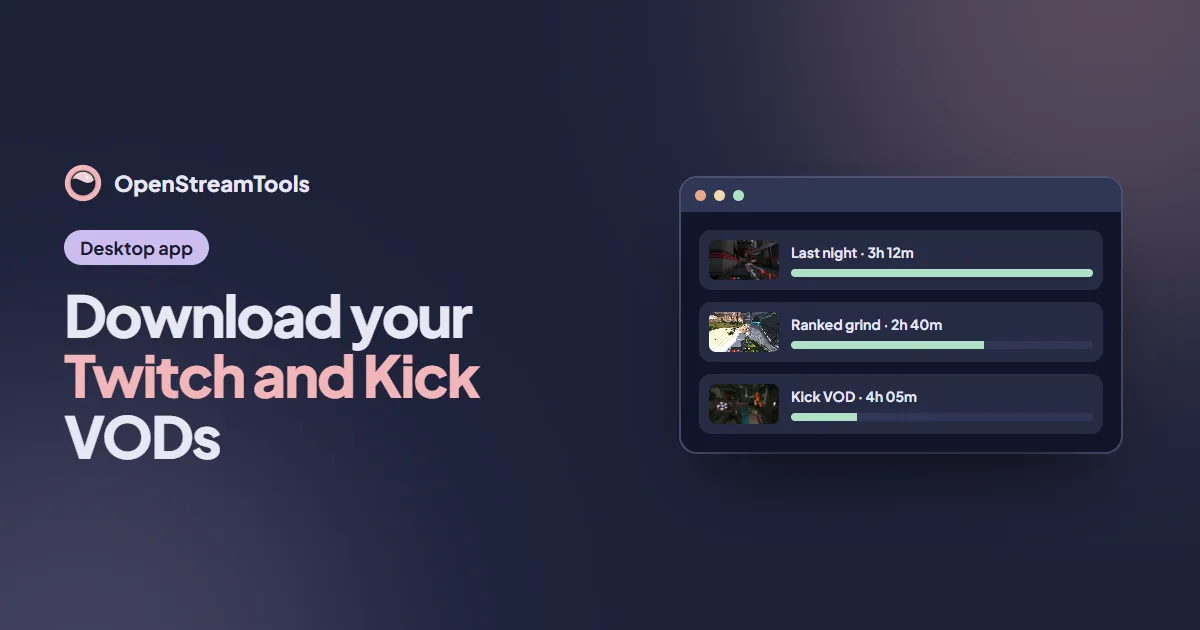
Most clips start the same way: you need the video on your computer first. Last night’s VOD, a clip someone made of you, a highlight from your Kick stream. Usually that means a sketchy downloader site with three fake “Download” buttons, or a command line tool you have to keep up to date yourself.
So we put one in OST. It’s in the desktop app for Windows and Mac, and it’s free on every plan, the free Editor plan too. No credits, and no limit on how much you download.
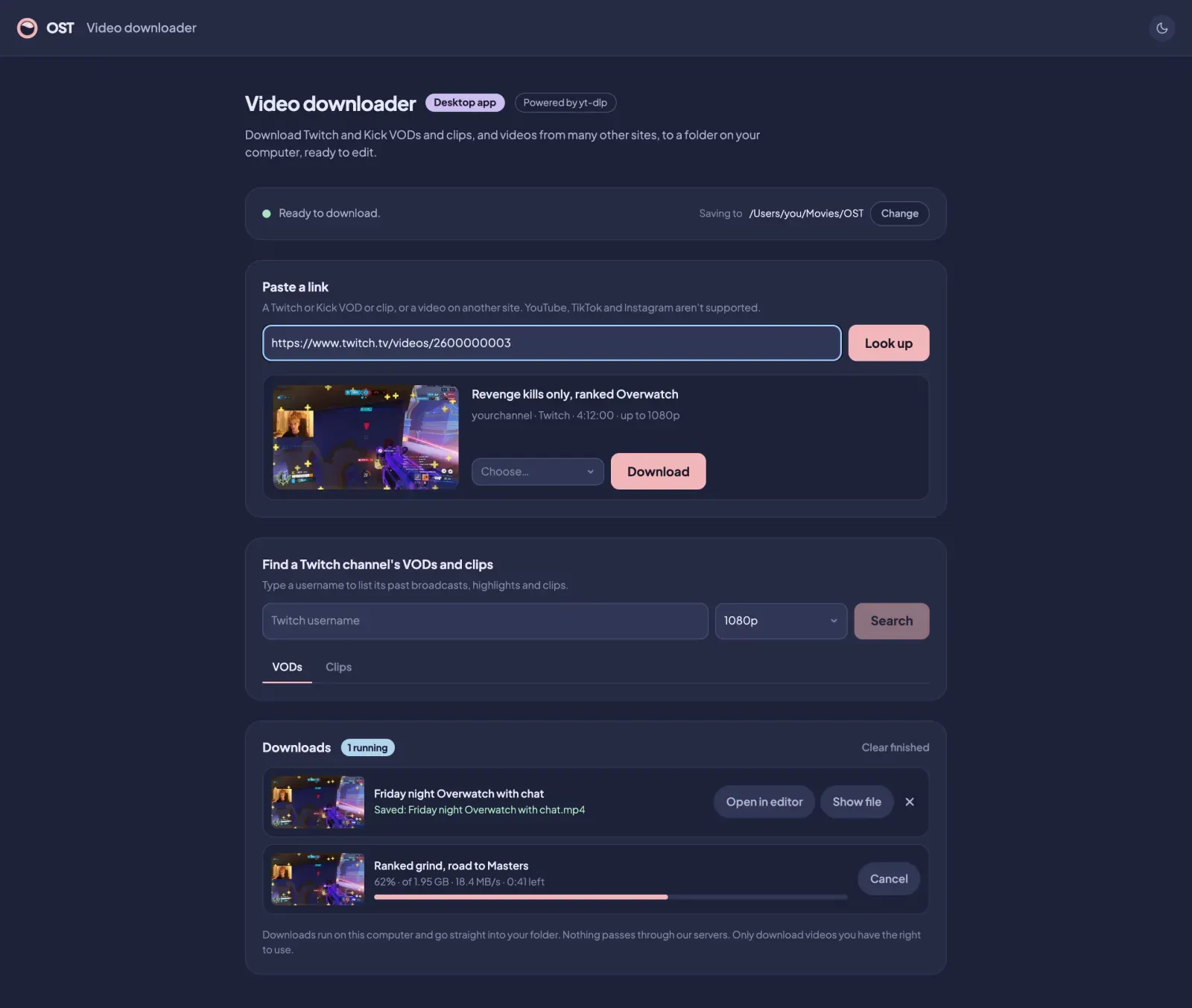
What you can do with it
- Paste a link. A Twitch VOD or clip, a Kick VOD, a post on X, and lots of other sites. You see the title and thumbnail, pick a quality and download. YouTube, TikTok and Instagram don’t work: their terms don’t allow downloading, and we stick to that.
- Look up a Twitch channel. Type a username and you get its past broadcasts, highlights and clips, each with its own download button. Your own channel is already filled in.
- Pick the quality. The best there is (up to 4K where the site has it), 1080p, 720p, or just the sound.
- Open it in the editor. Every finished download has an Open in editor button. The video goes on the timeline at full quality. It stays on your disk, so a saved project opens it again next time without asking.
How it works
Everything happens on your own computer. Nothing you download goes through our servers. Under the hood it uses yt-dlp, the open source downloader that does this better than anything else. You don’t have to install it: the app sets it up the first time you download something and keeps it up to date, because sites change all the time and an old version stops working.
Some sites send the picture and the sound separately, and Twitch VODs come in lots of small pieces. The app puts them back together into one MP4 without re-encoding anything, so you get exactly the quality the site serves.
Why it’s free
It runs on your computer, so a download costs us nothing. That’s also why the editor is free. We charge for the AI, because that part has a real bill behind it: Starter and Pro for AI captions, the AI tools, posting and the clip finder on whole streams.
Get it
Download the desktop app from the menu in OST, or from the banner at the top of the web app. Sign in with the same account and your projects are all there.
One request: only download what you have the right to use. Your own streams and uploads, or someone else’s with their permission.