A free video editor with no watermark, for vertical video
· Updated
Search for a free video editor and you’ll find plenty. Then you finish your edit, press export, and find out about the watermark, the 720p limit, or the subscription that was waiting at the end.
Here’s what to check first, and what we built instead.
What to check before you start editing
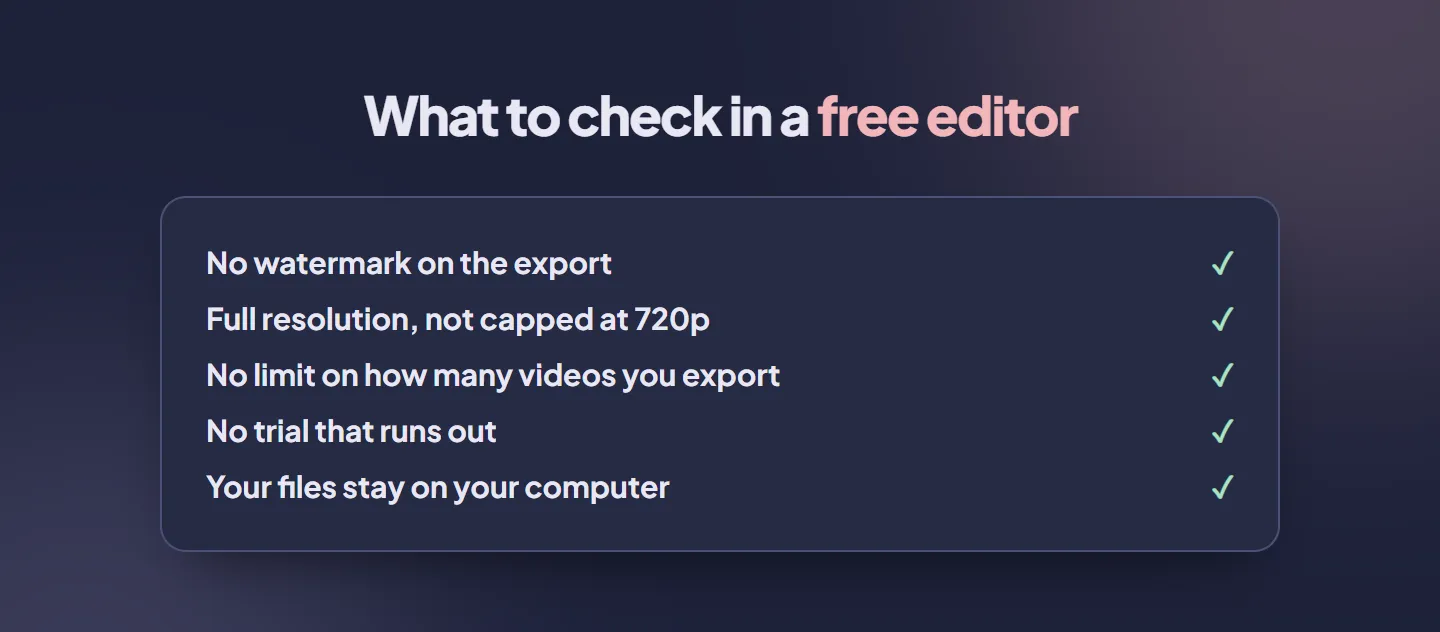
- The watermark. Look at an actual export, not the sales page. A logo in the corner tells everyone what you made it with, on every clip you post.
- Export resolution. Many free plans stop at 720p or 1080p, with 4K behind the paywall.
- Export limits. Some count how many videos you can export a month.
- Trial or free? “Free to start” often means free for a week.
- Where your files go. Cloud editors upload your footage first, which takes time and means your files sit on someone else’s server.
What you need for vertical video
A general video editor can make a Short, but it wasn’t designed for it. What makes the work quick:
- A vertical canvas at 9:16 from the start.
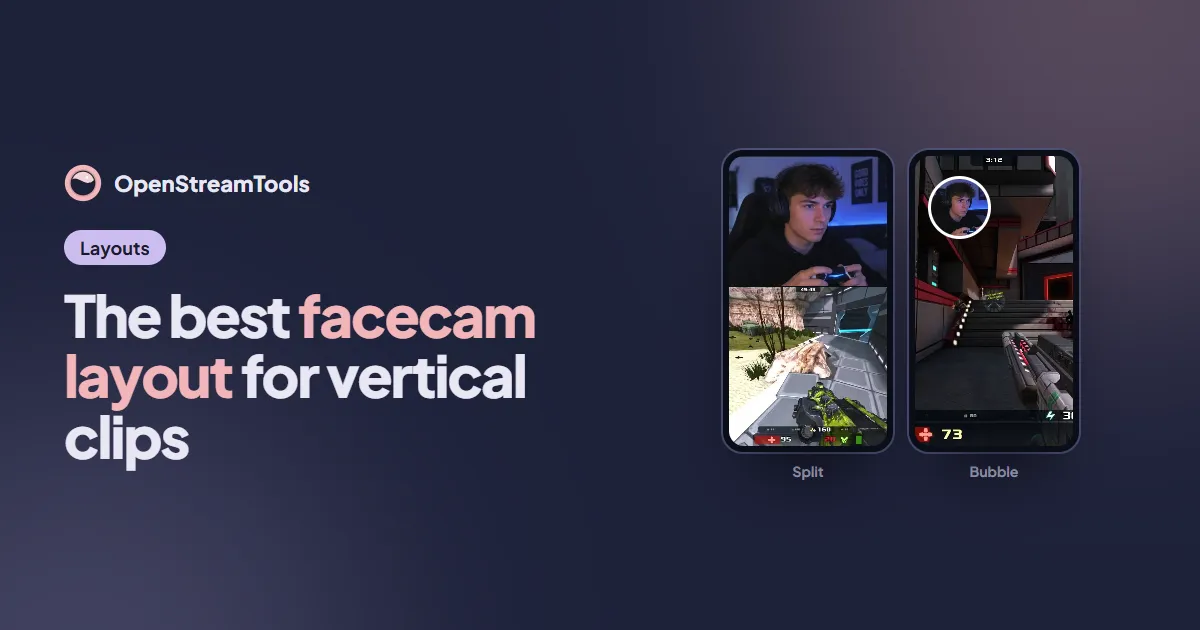
- Crops you can place separately, so a facecam and gameplay can sit in their own spots.
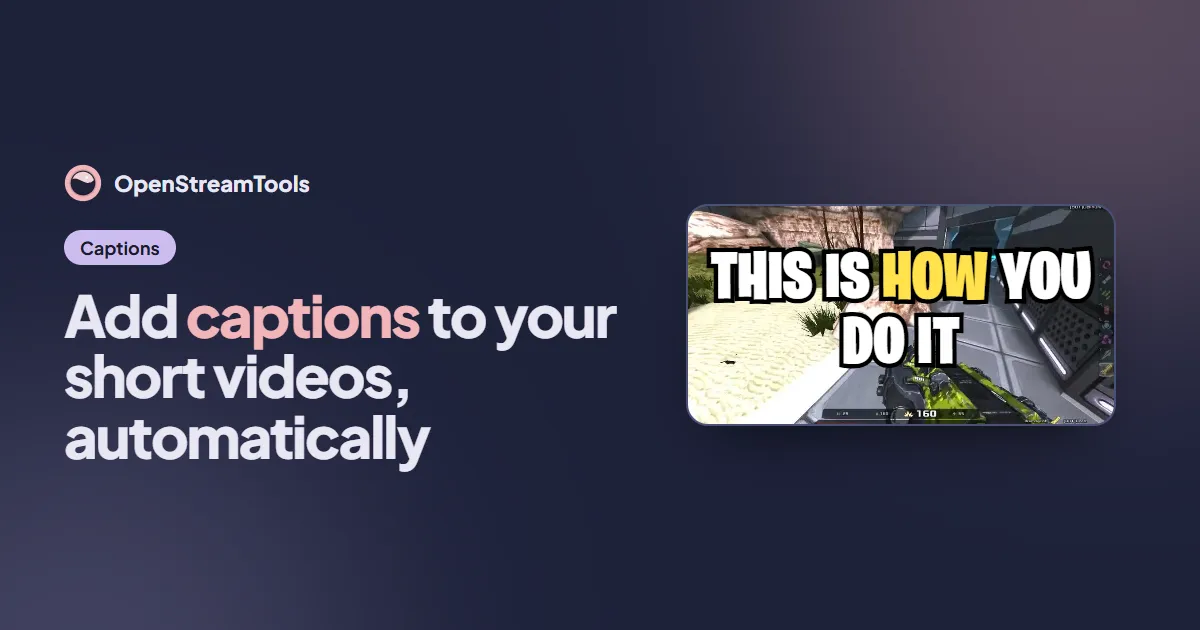
- Captions built in, with styles that work on a phone.
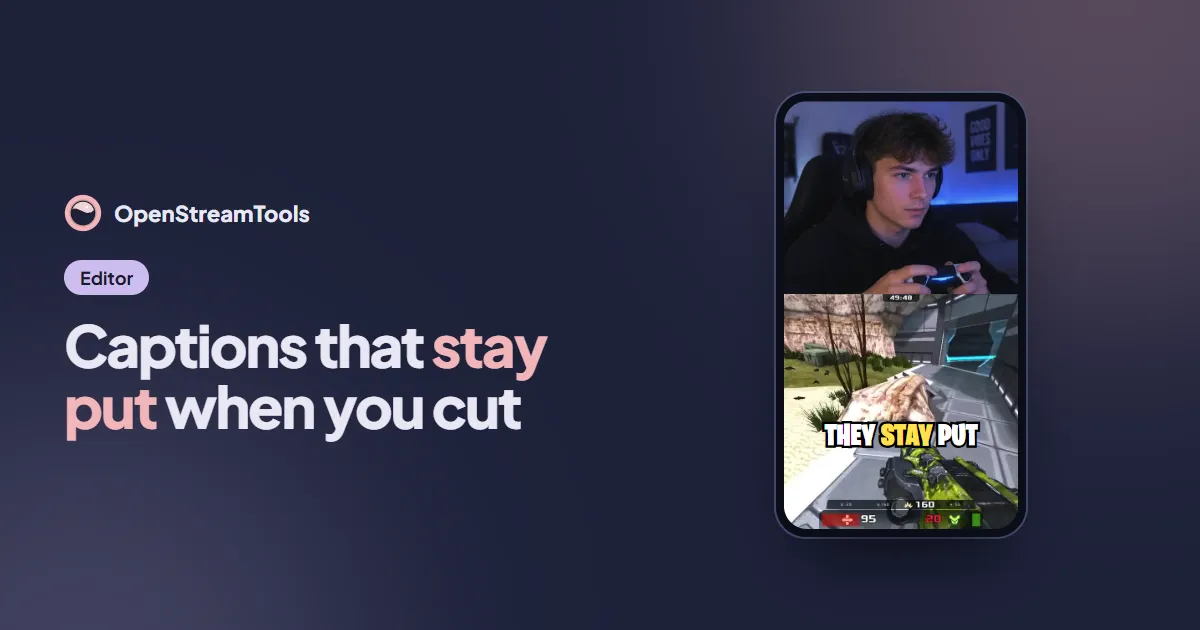
- A real timeline with several tracks, for text, stickers and sound.
The OpenStreamTools editor
We made the editor for streamers cutting vertical clips, and the whole thing is free. Not a trial:
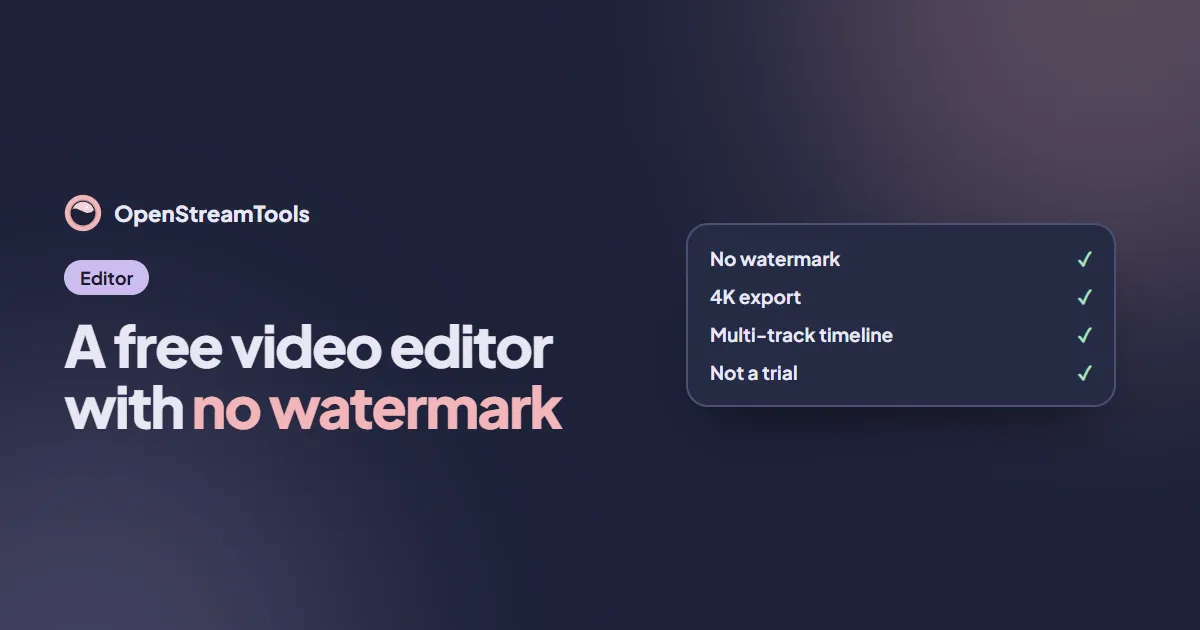
- 4K export, no watermark.
- A multi-track timeline: move, trim, split and rearrange.
- Crops and one-click layouts for facecam and gameplay, which it remembers for next time.
- Caption styles and animations, stickers with your handles, and element animations.
- Clips straight from Twitch, without downloading anything first.
- Saved projects you can open on any device.
- Runs in your browser, or as a desktop app for Windows and Mac.
Your videos are never uploaded to edit them. Rendering happens on your own computer, which is also why there’s no queue, and why we can give it away. It does mean a slow computer exports slowly, and that it runs best in Chrome on a computer with a real graphics card.
What isn’t free
The AI tools cost us money every time they run, so most of them are paid. The free plan has 10 minutes of AI captions a week to try them. No credits, on either paid plan:
- Starter (€15 a month): AI captions, the profanity filter, silence removal, AI titles and hashtags, posting to TikTok, YouTube and Instagram, and the AI clip finder, which reads whole streams and finds the moments for you. Try it free for 7 days.
- Pro (€25 a month): the same, with 225 hours of stream a month instead of 75 and an hour of captions a day. For when you clip a lot.
If you just want a good free editor, you never have to pay anything.
Questions streamers ask
Is there a free video editor without a watermark?
Yes. OpenStreamTools' editor is free, exports up to 4K and adds no watermark. It isn't a trial, and it runs in your browser or as a desktop app for Windows and Mac.
Do I need to download anything?
No. The editor runs in your browser, and Chrome on a computer works best. There's also a free desktop app, which handles long videos and exports better.
Are my videos uploaded when I edit them?
No. Editing and exporting happen on your own computer, so your videos stay there. Only a finished video you choose to post is uploaded, to get it to the platform.
What's the catch with a free editor?
Check what's held back. With OpenStreamTools, the editor and 4K export are free. The AI tools cost money to run, so AI captions, posting and the AI clip finder are in Starter, from €15 a month.