How to add captions to short videos automatically
· Updated
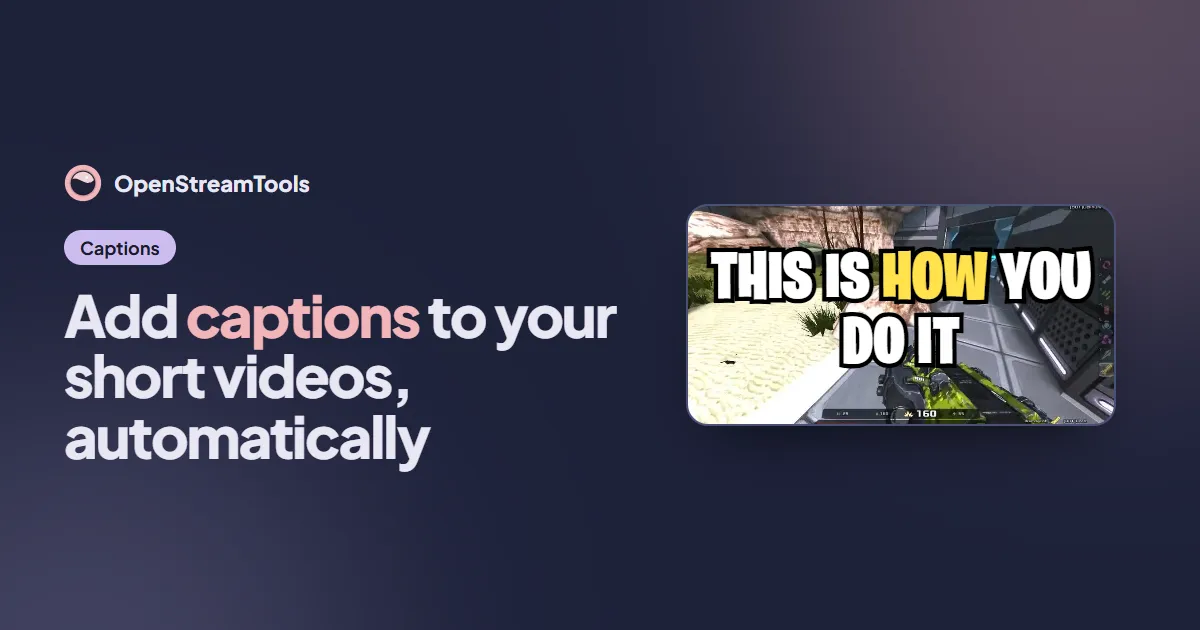
A lot of people scroll with the sound off. Without captions, your clip is someone moving their mouth, and they’re gone in a second. With good captions, they read along, and often turn the sound on.
Typing them by hand takes forever, so nearly everyone uses automatic captions now. The tool does the typing. Whether they work depends on how they look.
Small and long versus big and short
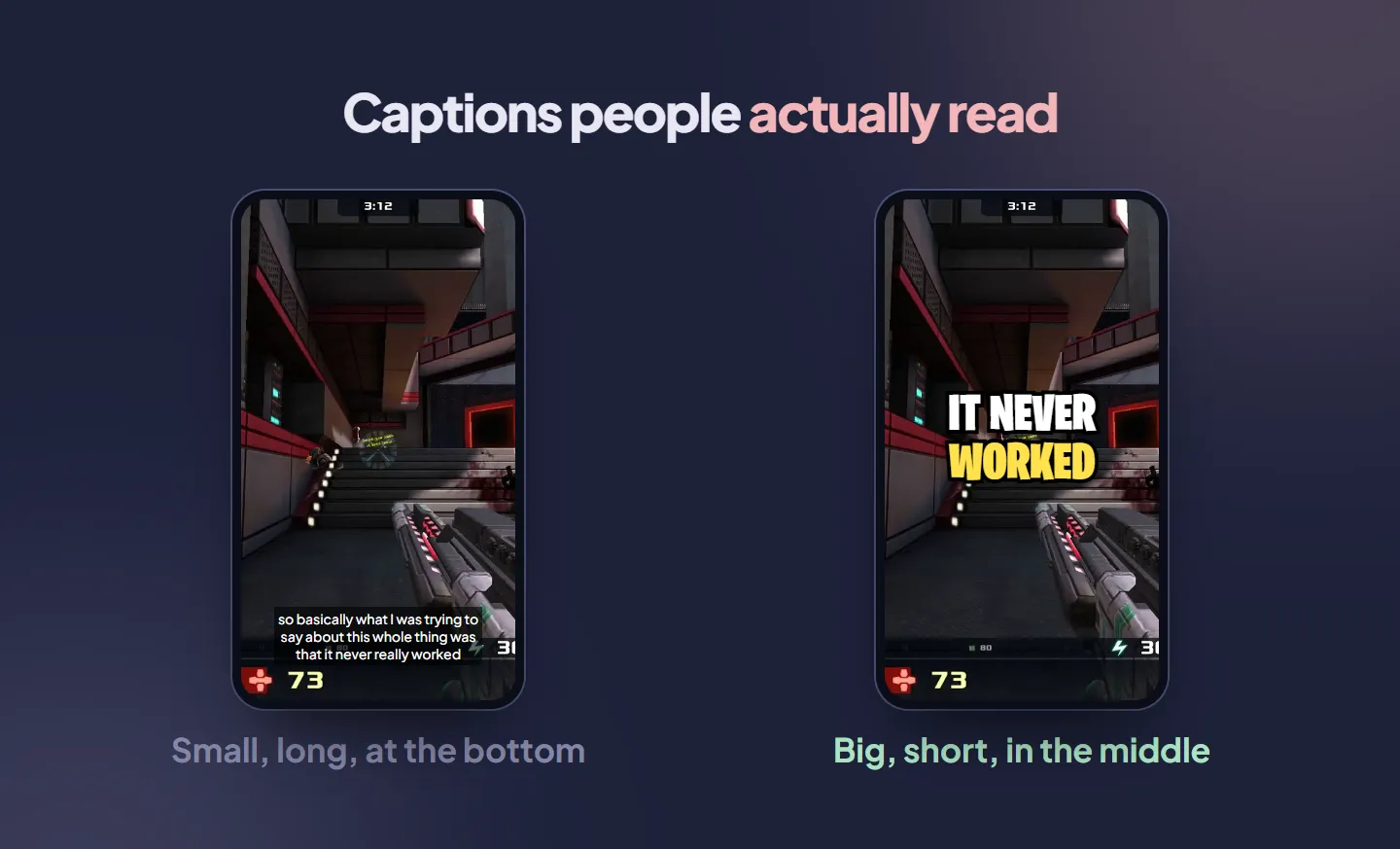
The captions on the left are what you get from a default subtitle track. They’re fine for a film. On a phone, in a feed, nobody reads them. The ones on the right can be read in a glance.
What good captions look like
- Two to five words at a time. Short groups, in step with the speech.
- Big. They should fill most of the width of the phone.
- A heavy font with a dark outline, so they stay readable over any background.
- In the middle of the frame, or just below it.
- The current word highlighted. It pulls the eye along and keeps people reading.
Where to put them
TikTok, Shorts and Reels all lay their own text and buttons over your video: along the bottom and down the right side. Captions placed there get covered.
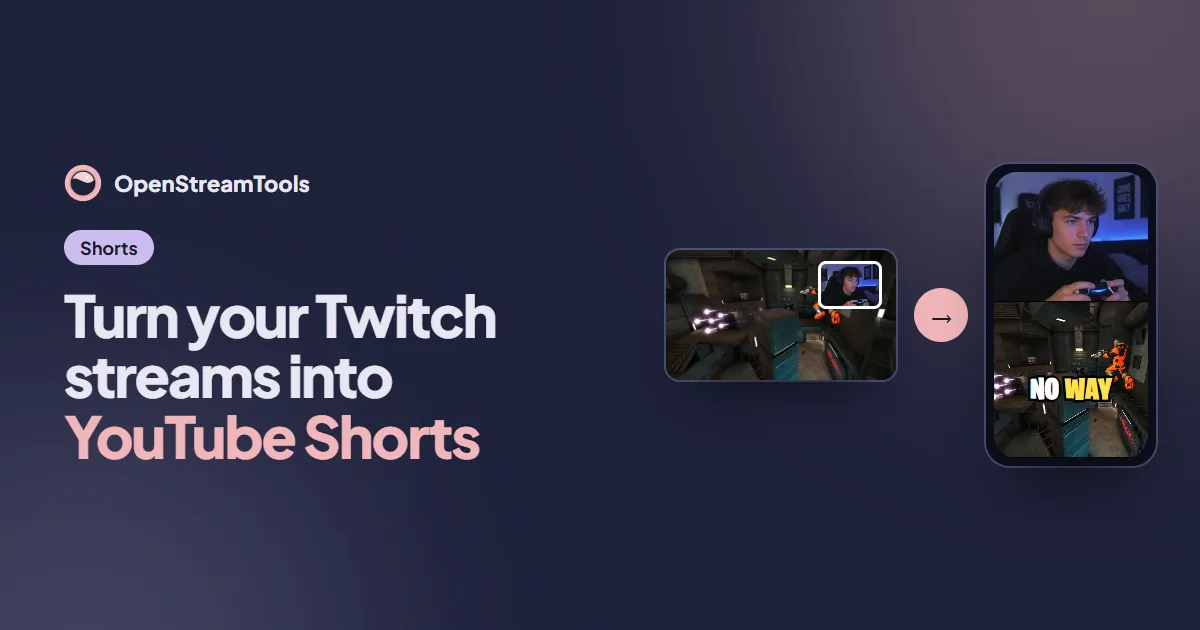
With a facecam on top and gameplay below, the line between the two is a natural spot. For a talking head, just under the chin works well.
How to add them automatically
Whatever tool you use, the steps are the same:
- Transcribe. The tool listens to your video and writes out every word with its timing.
- Check the words. Read it through once. Fix names, game terms and slang.
- Pick a style. Choose it once and keep it, so your clips look like yours.
- Place them clear of the app’s buttons.
- Export with the captions burned into the video, so they show on every platform.
Mistakes to fix before you post
- Wrong names. The first thing viewers notice, and the first thing that makes a clip look careless.
- Lines that break mid-thought. Split on natural pauses, not at a fixed word count.
- Captions out of step after you’ve cut the video. They should move with your cuts.
- Swearing you didn’t mean to post. On screen in big letters, it’s hard to miss.
- Two people in one colour. With more than one speaker, give each their own.
Captions in OpenStreamTools
In OpenStreamTools, AI captions come with Starter:
- Word by word, with the timing of every word.
- They know who’s talking. Each speaker can have their own style.
- Edit per sentence, or drag a single word to fix its timing.
- They stay in step when you cut, because they belong to the video, not to a separate track. Here’s how that works.
- The AI profanity filter masks and mutes swearing if you want it to.
Styling and animating captions is part of the free editor, with 4K export and no watermark. And the AI clip finder in Starter gives you clips with captions already on them.
Questions streamers ask
Should captions be in the middle or at the bottom of a short video?
In the middle, or a little below it. On TikTok, Shorts and Reels the bottom of the screen is covered by the app's own text and buttons, so captions placed there get hidden.
How many words should a caption show at once?
Two to five. Short groups are easy to read at a glance and keep people's eyes moving along with the speech.
Are automatic captions accurate?
Good ones get most words right, but they still trip over names, game terms and slang. Read them through once before you post: fixing a few words takes a minute.
What font should I use for captions?
A bold, heavy font with a dark outline or shadow, so it stays readable on any background. Thin fonts disappear over busy video.
Do captions help a video get more views?
They help people stay, because many scroll with the sound off and others can't follow without text. Apps show a video to more people when viewers keep watching.