How to turn your Twitch streams into YouTube Shorts
· Updated
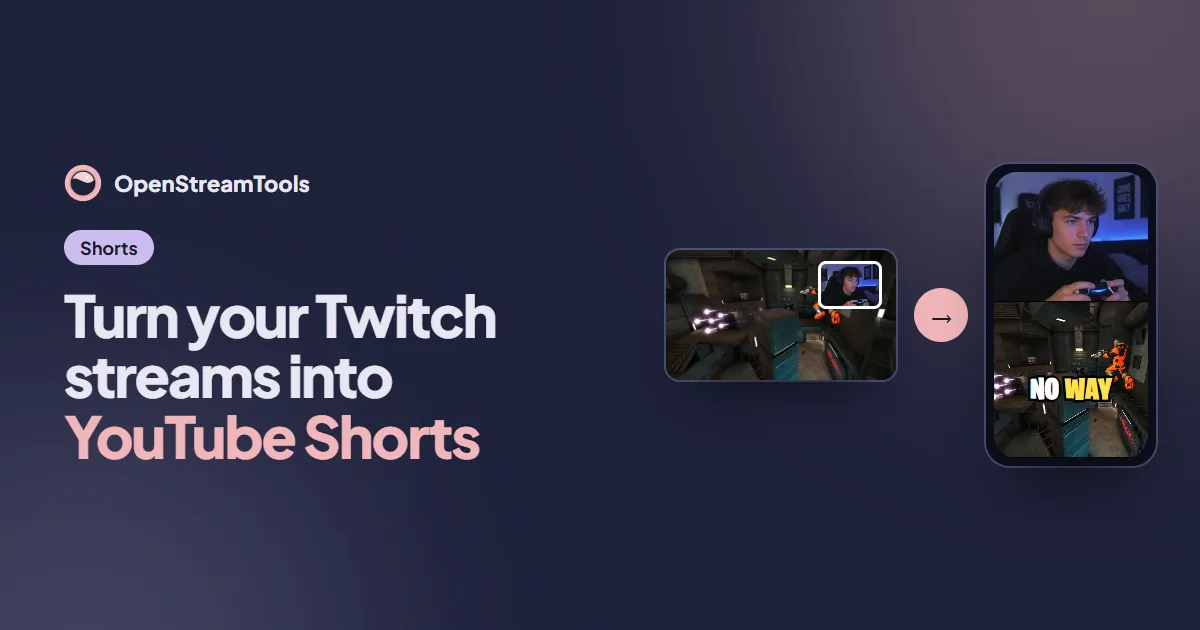
YouTube Shorts is one of the best places for a streamer to be found. People scroll through clips from channels they’ve never heard of, and a good one sends them straight to yours. All you need is the part most streamers never get to: turning a three-hour stream into a 40-second vertical video.
Here’s how, from VOD to posted Short.
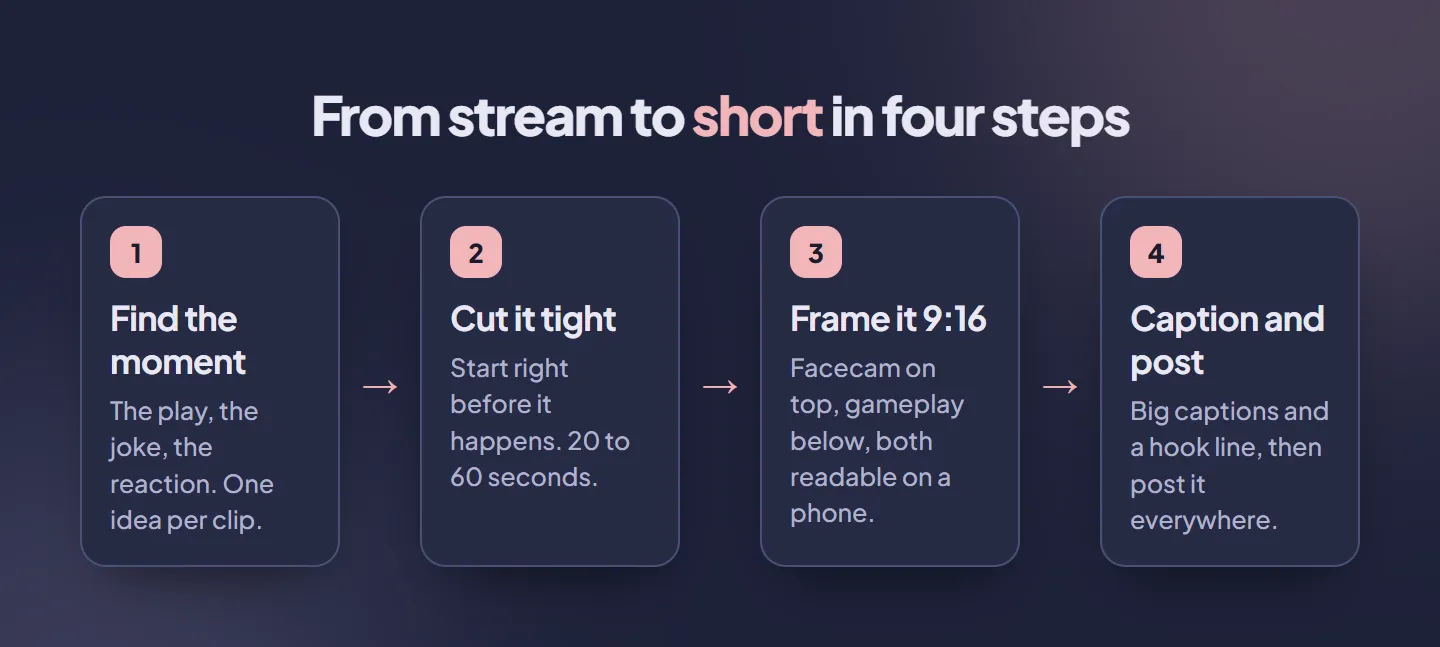
Step 1: find the moment
Everything else depends on this. A Short works when it’s one moment with one idea:
- A play you can’t believe you pulled off (or the one that went horribly wrong).
- A reaction: the jump scare, the rage, the moment you lost it laughing.
- A story with a punchline.
- An opinion said with conviction, the kind people want to reply to.
The hard part is finding them. A three-hour VOD has maybe five of these, and you remember two. Some ways to find the rest:
- Mark them live. Many streamers use a stream marker or a hotkey when something happens, so they can find it in the VOD later.
- Check your chat. A burst of messages or emotes usually means something happened.
- Use Twitch clips. Your viewers’ clips are a list of what they thought was worth keeping.
- Let AI watch it. A clip finder goes through the whole stream and comes back with the moments, ranked.
Step 2: cut it tight
The first second decides whether someone keeps watching. So:
- Start right before it happens. Not with “okay so”, not with the walk to the spot. If the setup needs a sentence, start on that sentence.
- End when it lands. Right after the punchline or the reaction. Lingering is where people swipe away.
- Aim for 20 to 60 seconds. Shorts can be up to 3 minutes, but a moment rarely needs that.
Cut on whole sentences. A clip that starts halfway through a word feels broken.
Step 3: frame it for 9:16
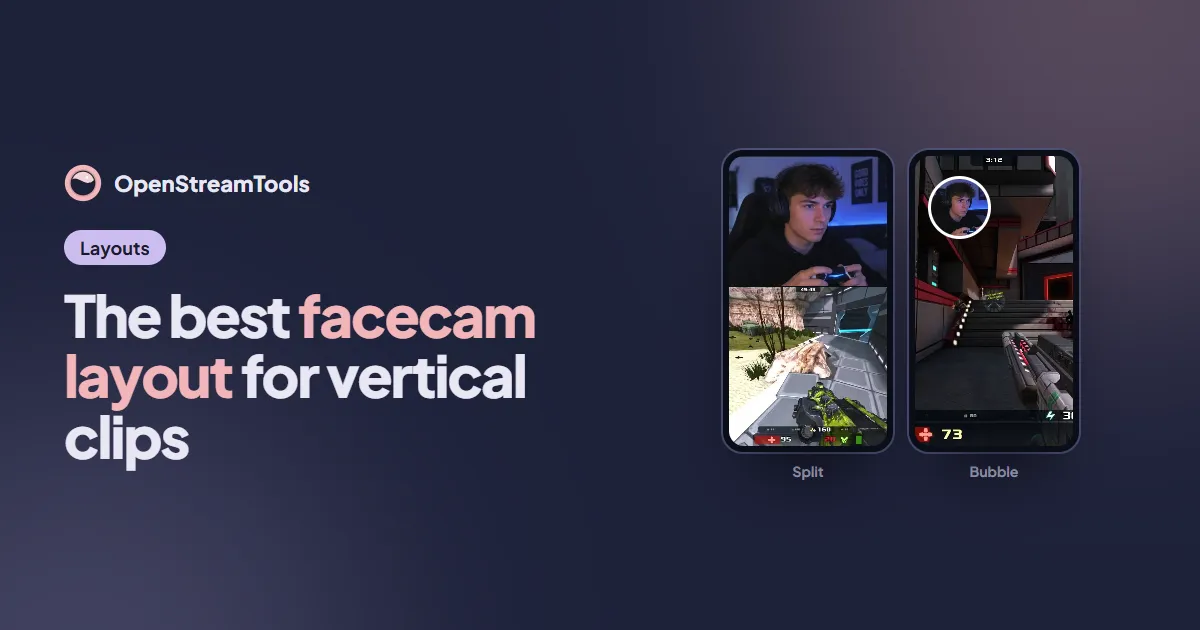
Your stream is horizontal, a Short is vertical. Just cropping the middle cuts off your facecam and leaves a sliver of the game. The usual answer is a split layout: your facecam on top, the gameplay below, each cropped and scaled separately.
A few things make it look right:
- Crop the facecam tight. Your face, not your whole room.
- Crop the gameplay to what matters. Usually the middle of the screen, where the action is. The minimap and the corner of your HUD can go.
- Pick the layout for the clip. A skill clip may want the gameplay bigger. A story clip can be just your face. We compared the options in the best facecam layout for vertical clips.
Step 4: add captions and a hook
Most people watch Shorts with the sound off, at least for the first seconds. Captions turn those seconds into a reason to turn the sound on.
- Big and in the middle, between your facecam and the gameplay or just below.
- A few words at a time, highlighting the word being said.
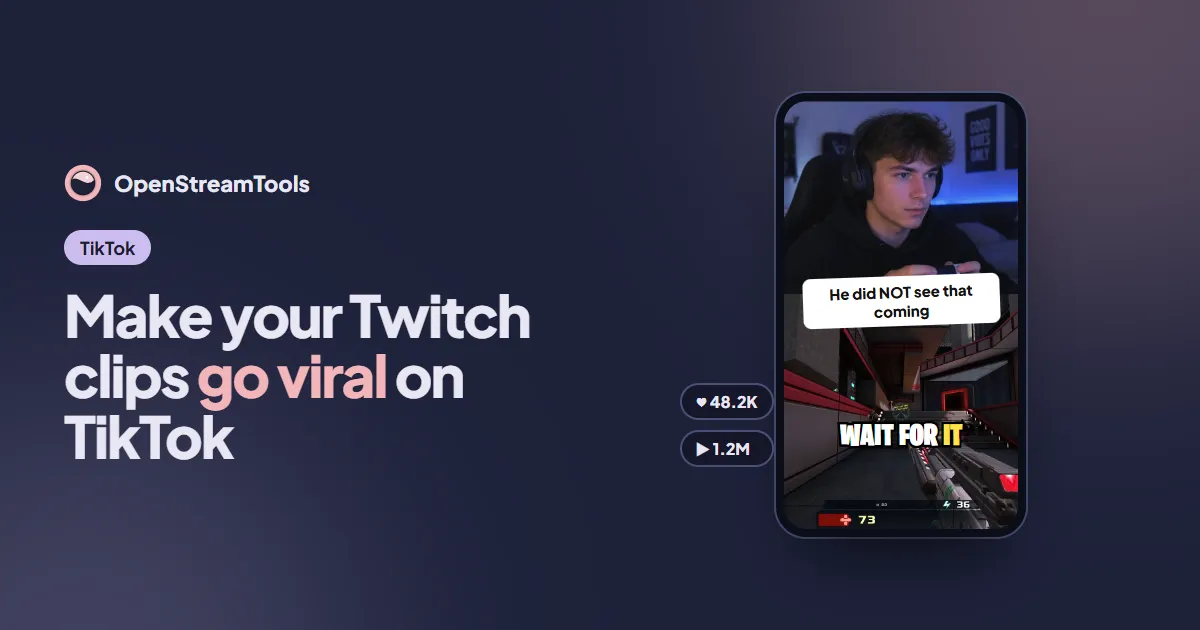
- A hook line at the top for the first seconds: what’s about to happen, in a few words. “He did NOT see that coming.”
Step 5: post it
- Title: short, and what the clip is about. Leave the details for the description.
- Description: a line of context, your Twitch link, and a few hashtags for the game.
- Export in 1080×1920 or higher. A sharp Short looks more like something worth watching.
- Mind the music. Songs in the background of your stream can get a Short muted or claimed.
Then do it again tomorrow. One Short a day, from your last few streams, keeps your channel active on the days you don’t stream.
Doing all of this in one place
That’s five steps per clip, every stream, and most streamers drop it after a week. OpenStreamTools puts them in one place:
- The AI clip finder reads your whole Twitch VOD and returns the best moments, cut on whole sentences, each with a title and a hook.
- Framing is done for you: facecam and gameplay are found and laid out as a split, per scene when you switch OBS scenes.
- Captions come with speakers and their own style, and you can edit every word.
- The editor is free, with 4K export and no watermark. Posting straight to YouTube, TikTok and Instagram comes with the paid plans.
Questions streamers ask
How long can a YouTube Short be?
Up to 3 minutes, as long as the video is vertical or square. For clips from a stream, 20 to 60 seconds usually works best: long enough for the moment, short enough that people watch to the end.
Can I post my Twitch clips on YouTube Shorts?
Yes, they're your streams. Watch out for music: songs playing in the background of your stream can get a Short muted or claimed. Clips where you're talking over the game are the safest.
What resolution should a YouTube Short be?
1080×1920 (9:16) is the standard. You can export higher, up to 4K, and YouTube will keep the extra sharpness.
How do I make sure YouTube treats my video as a Short?
Make it vertical (or square) and no longer than 3 minutes. Adding #Shorts to the title or description doesn't hurt, but the shape and length are what count.
How many Shorts should I post per stream?
Two or three of your best moments beats ten average ones. Posting one a day, from your last few streams, keeps your channel active between streams.