The best video editing software for streamers
· Updated
Streamers edit differently from everyone else. Your source is a four-hour VOD, not a ten-minute take. Your frame has a facecam in the corner and a game behind it. And the job is usually not one polished film, but three short clips before tomorrow’s stream.
So the best video editing software for streamers isn’t simply the one with the most features. It depends on what you make. We make one of these tools, so take that into account. Prices and limits below were checked in November 2026 and can change.
First: what are you making?
- Vertical shorts from your streams: you want speed. Layouts, captions, done.
- Long YouTube videos: you want a full editor, and you’ll spend the hours to learn it.
- Clips, but you don’t have time to find them: you want something that searches the VOD for you.
The options at a glance
| Tool | Best for | Price | Watch out for |
|---|---|---|---|
| OpenStreamTools | Shorts from streams | Editor free, clip finder from Starter | Made for vertical video, not long YouTube edits |
| CapCut | Quick edits on any video | Free, with a paid Pro | Pro materials bring a watermark on free. Not stream-specific |
| DaVinci Resolve | Long videos, colour | Free, Studio is a one-time $295 | Takes time to learn, wants a strong PC |
| Premiere Pro | Professional editing | Subscription, no free plan | A monthly cost, even if you only need short clips |
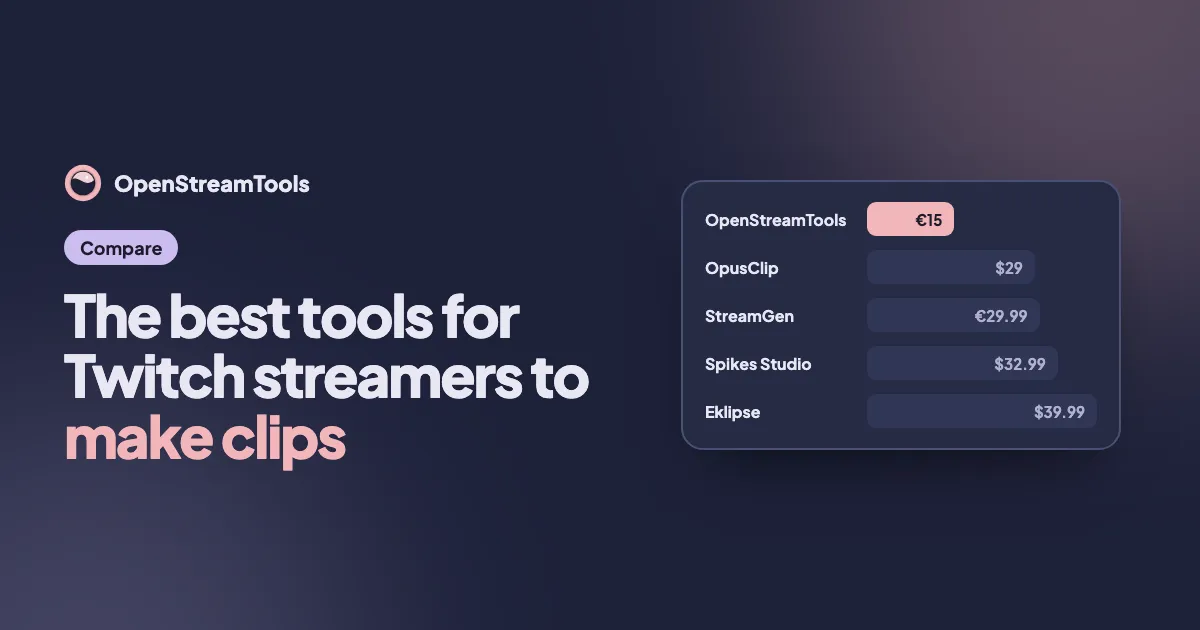
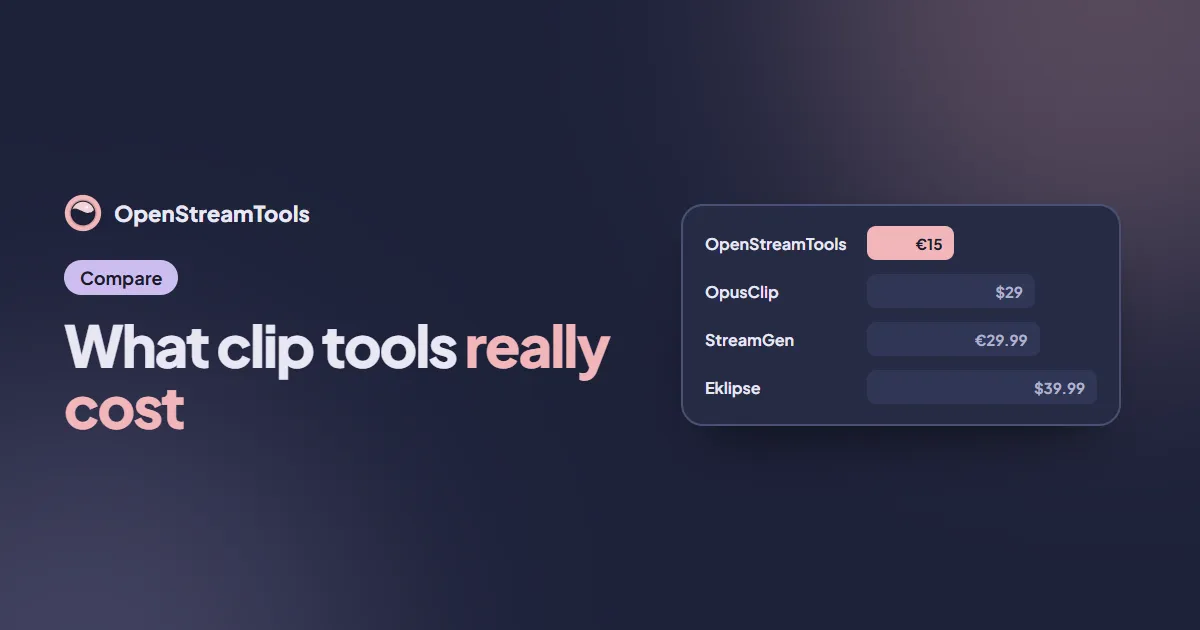
| OpusClip, Eklipse, StreamGen | Finding clips automatically | $29, $39.99 and €29.99 a month for the plan with everything | Less control than a real timeline. See our comparison |
CapCut: quick, and on every device
CapCut is what many streamers start with, and for good reason: it’s easy, it’s on phones and computers, and it has lots of effects. The free plan works for simple edits, as long as you stay away from Pro materials, which put a watermark on your export until you pay.
It’s a general editor, though. Framing a facecam and gameplay means doing it by hand on every clip, and it can’t help you find the moment in a long VOD.
DaVinci Resolve: the most you get for free
If you make long YouTube videos, Resolve is hard to beat. The free version exports up to Ultra HD and does more than most people ever need. Studio is a single payment of $295, not a subscription.
The catch is that it’s professional software. Expect to spend real time learning it, and to need a strong PC. For three shorts before tomorrow’s stream, it’s a lot of tool.
Premiere Pro: the industry standard
Premiere is what many professional editors use, and if you work with one, that’s a good reason to use it too. It’s a subscription with no free plan, which adds up when all you need is short clips.
Clip tools: OpusClip, Eklipse and StreamGen
These don’t edit so much as find. Point them at a stream and they return clips, which is exactly what a busy streamer wants. Each has its strengths: StreamGen has an autopilot, Eklipse lets you say “clip it” while you play, OpusClip posts to a long list of platforms.
Two things to look at are how they count usage (credits, clips or streams per month) and how far you can edit a clip afterwards. We put them next to each other in what clip tools really cost, and every clip tool for streamers with what it’s good at in the best tools for Twitch streamers to make clips.
OpenStreamTools: finding and editing in one place
We built OpenStreamTools because we wanted both: something that finds the moments, and a real editor for what comes after.
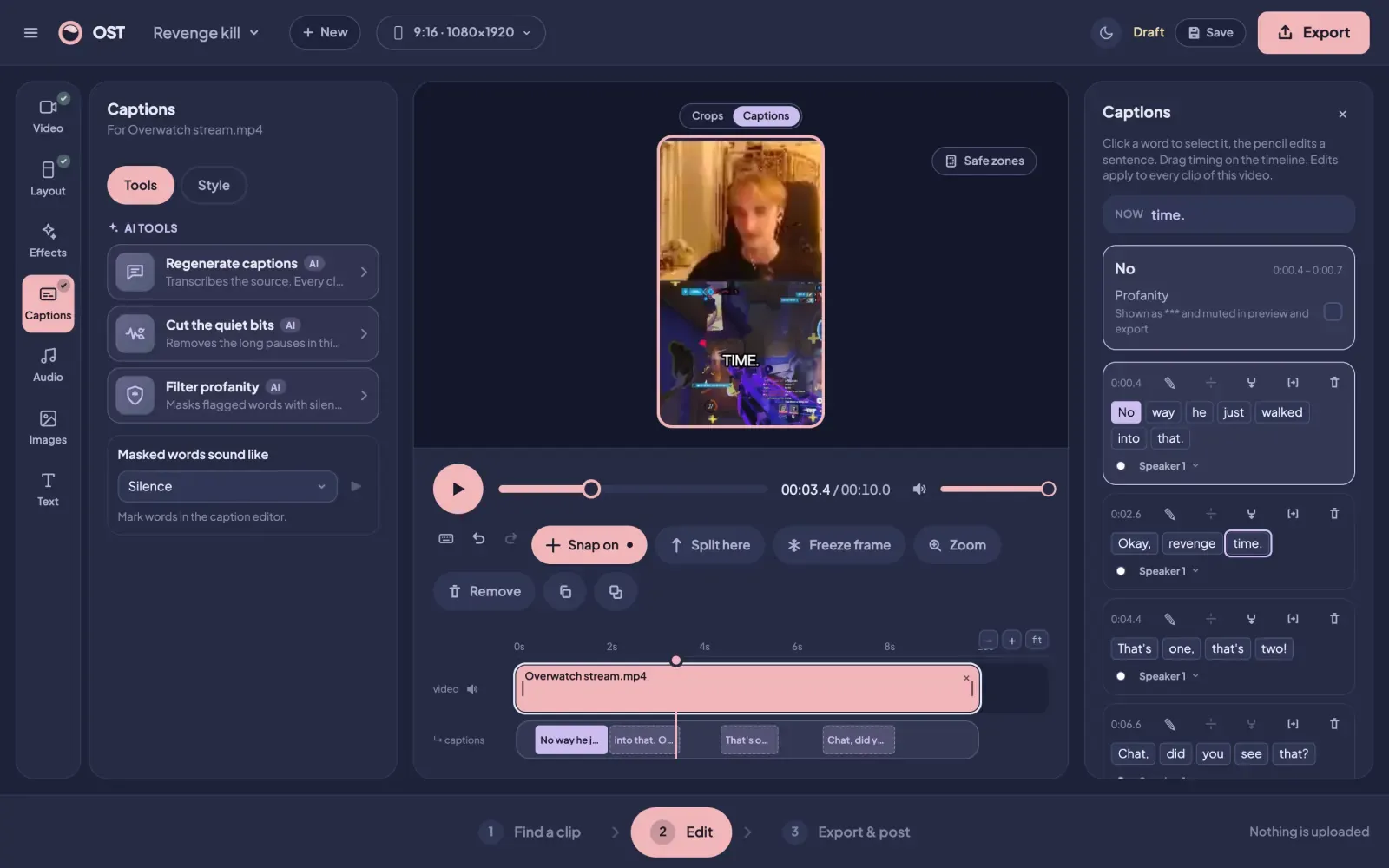
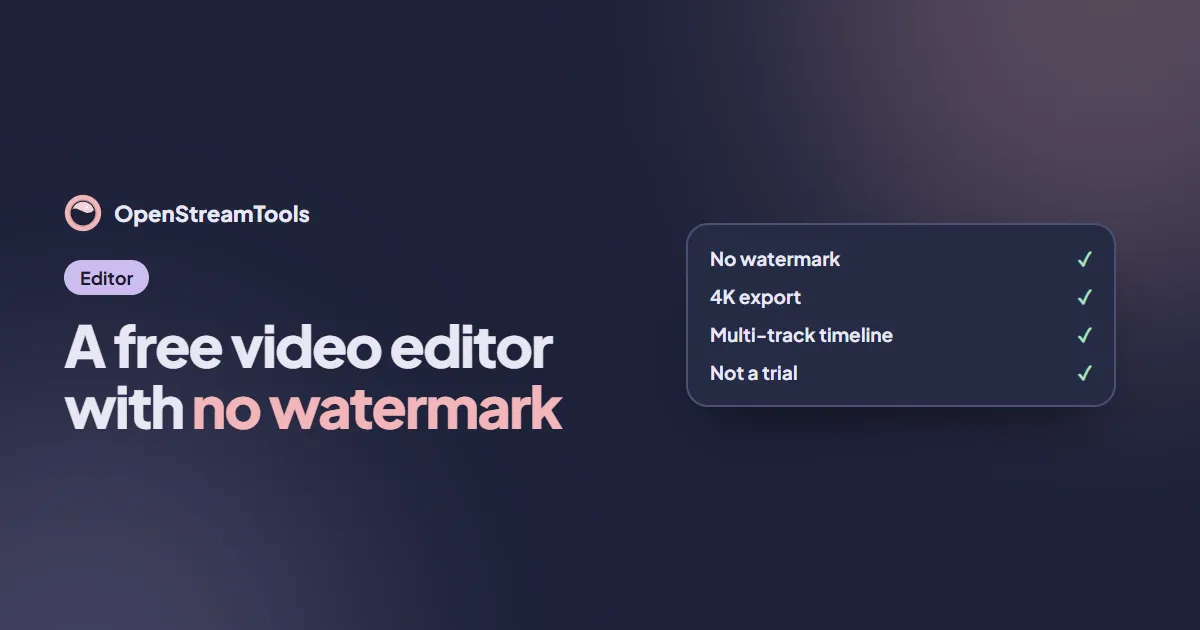
- A full vertical editor, free. A timeline with several tracks, crops and layouts, 4K export and no watermark. It isn’t a trial.
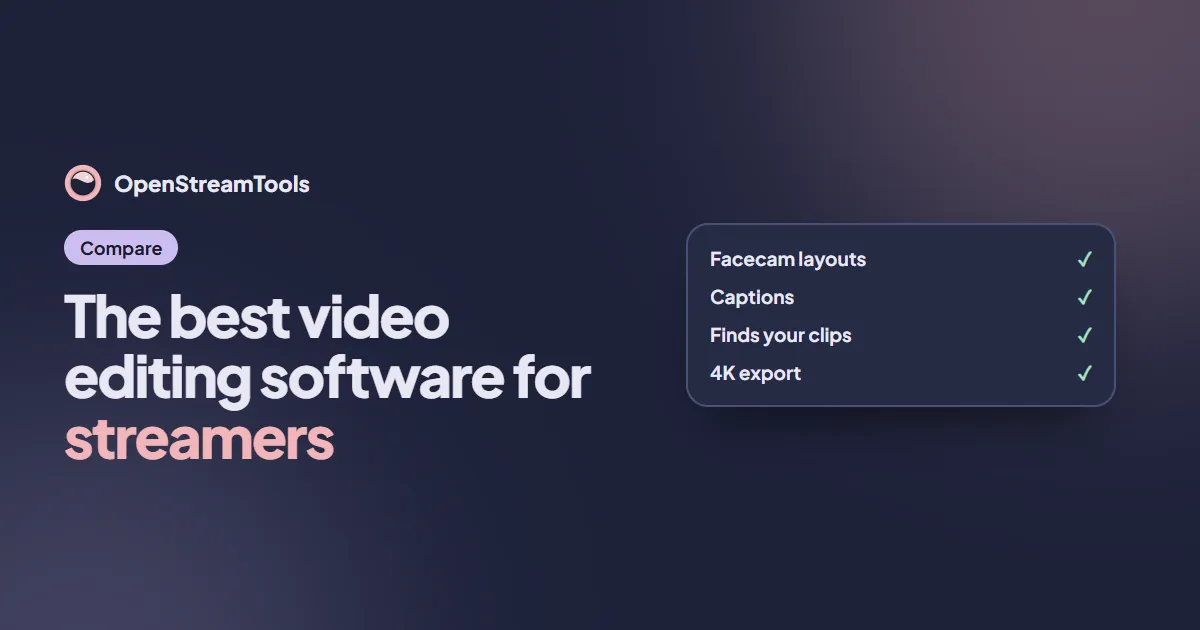
- Made for facecam and gameplay. Mark your facecam once and it remembers it.
- Captions that stay put. They belong to the video, so cutting a clip doesn’t break them.
- The AI clip finder reads whole Twitch and Kick VODs from Starter, €15 a month for 75 hours of stream, with no credits.
- It runs on your computer. In your browser or the desktop app, and your videos aren’t uploaded.
What it isn’t: an editor for long horizontal YouTube videos. For those, use Resolve or Premiere.
So which one?
- You make shorts from your streams: OpenStreamTools or CapCut. OpenStreamTools if you want layouts for facecam and gameplay, and the option to have clips found for you.
- You make long YouTube videos: DaVinci Resolve, or Premiere Pro if you already pay for it.
- You make both: a full editor for the long ones, and a fast one for the shorts. Plenty of streamers use two.
Most editors have a free way in, so try the one that fits on your last stream. You’ll know within a clip or two.
Questions streamers ask
What's the best free video editor for streamers?
For vertical clips, OpenStreamTools: the editor is free, with 4K export and no watermark. For long YouTube videos, DaVinci Resolve is free and very capable, but takes much longer to learn.
What video editor do streamers use for clips?
Mostly CapCut for quick vertical clips, Premiere Pro or DaVinci Resolve for long YouTube videos, and clip tools for finding moments in a VOD. Which fits depends on whether you make shorts or long videos.
Do I need a powerful PC to edit stream clips?
For short vertical clips, not really. Long timelines and heavy effects in a professional editor are what need a strong PC and graphics card.
Is there a Twitch video editor?
Twitch has a simple clip editor in the Creator Dashboard: it can trim a clip and turn it vertical. For split layouts, captions or anything longer, you need a separate editor.
What's the best gaming clip editor?
One that knows what a stream looks like: a facecam and gameplay you can frame separately, plus captions. General editors can do it by hand. Tools made for streams do it in a click, or for you.