How to download Twitch clips and VODs
· Updated
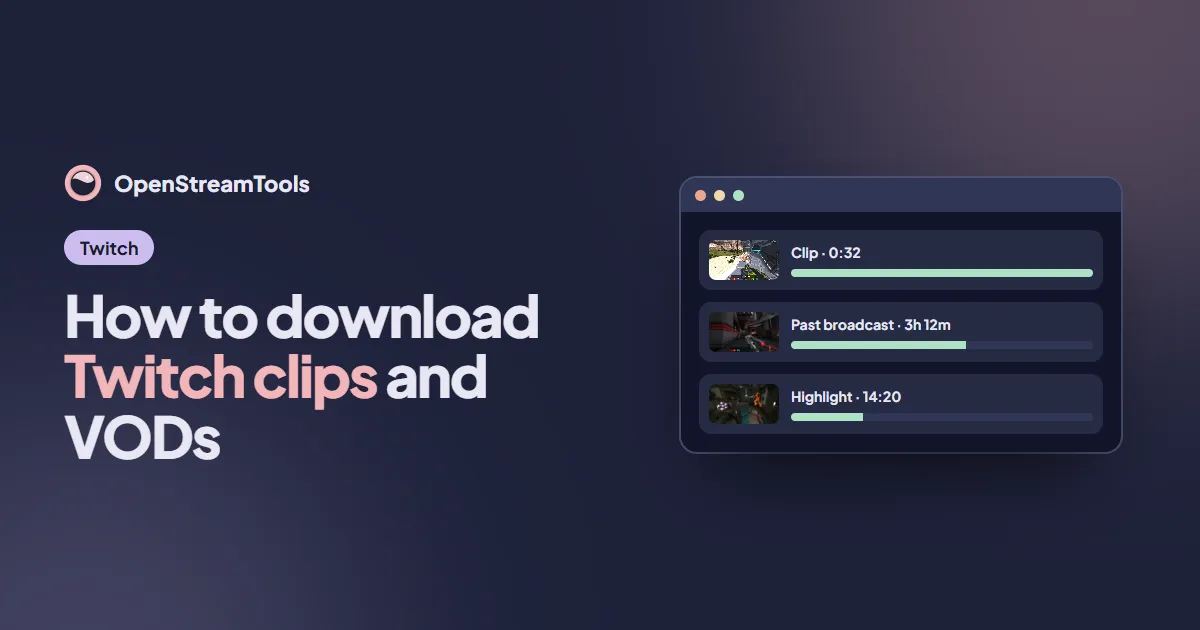
There are good reasons to want a Twitch video on your own computer. Your VOD is about to expire. You want to edit a clip into a short. A viewer made something great of your stream and you want to keep it. Search for a downloader, though, and you land on sites with three fake “Download” buttons.
You don’t need those. Here’s every safe way to do it, starting with what Twitch gives you.
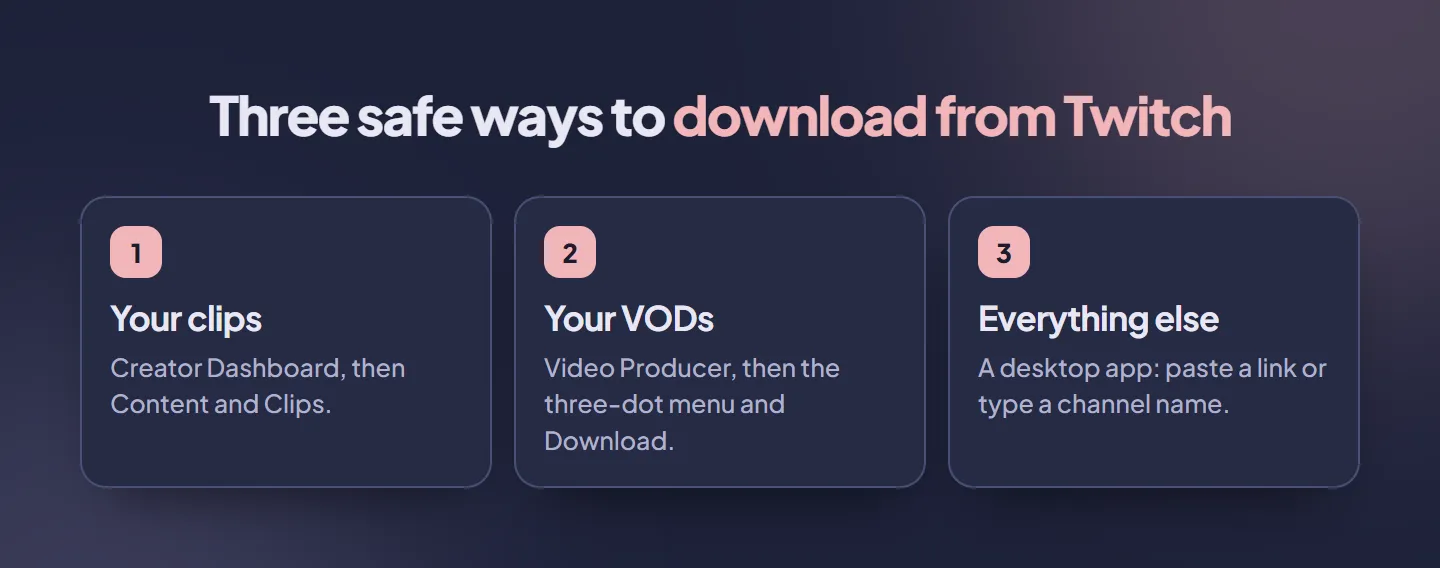
Download your own clips from Twitch
This is the simplest route for clips of your own channel:
- Open the Creator Dashboard in a browser on your computer.
- Go to Content → Clips.
- Open the clip and find the download option. It may ask whether you want it wide or vertical.
Twitch moves its menus around now and then, so the exact button can differ a little.
Download your own VODs from Twitch
For a full stream:
- In the Creator Dashboard, go to Content → Video Producer.
- Find the broadcast under your past broadcasts.
- Open the three-dot menu next to it and choose Download.
One thing to check first: storing past broadcasts has to be on before you stream. It’s in your stream settings. If it was off, there’s nothing to download.
Don’t wait too long either. VODs are deleted after a while, and how long depends on your account. We listed it in how long Twitch VODs last.
Download anything else with a desktop app
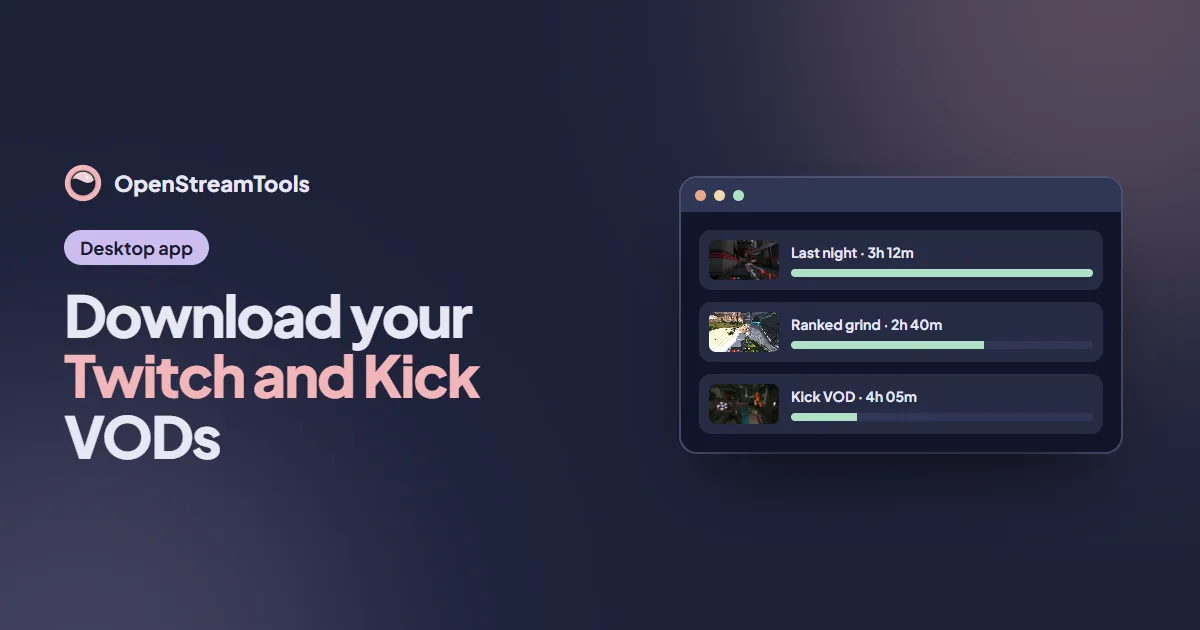
Twitch’s buttons only cover your own channel, one video at a time. For the rest there’s the video downloader in the OpenStreamTools desktop app for Windows and Mac. It’s free on every plan, with no limit on how much you download.
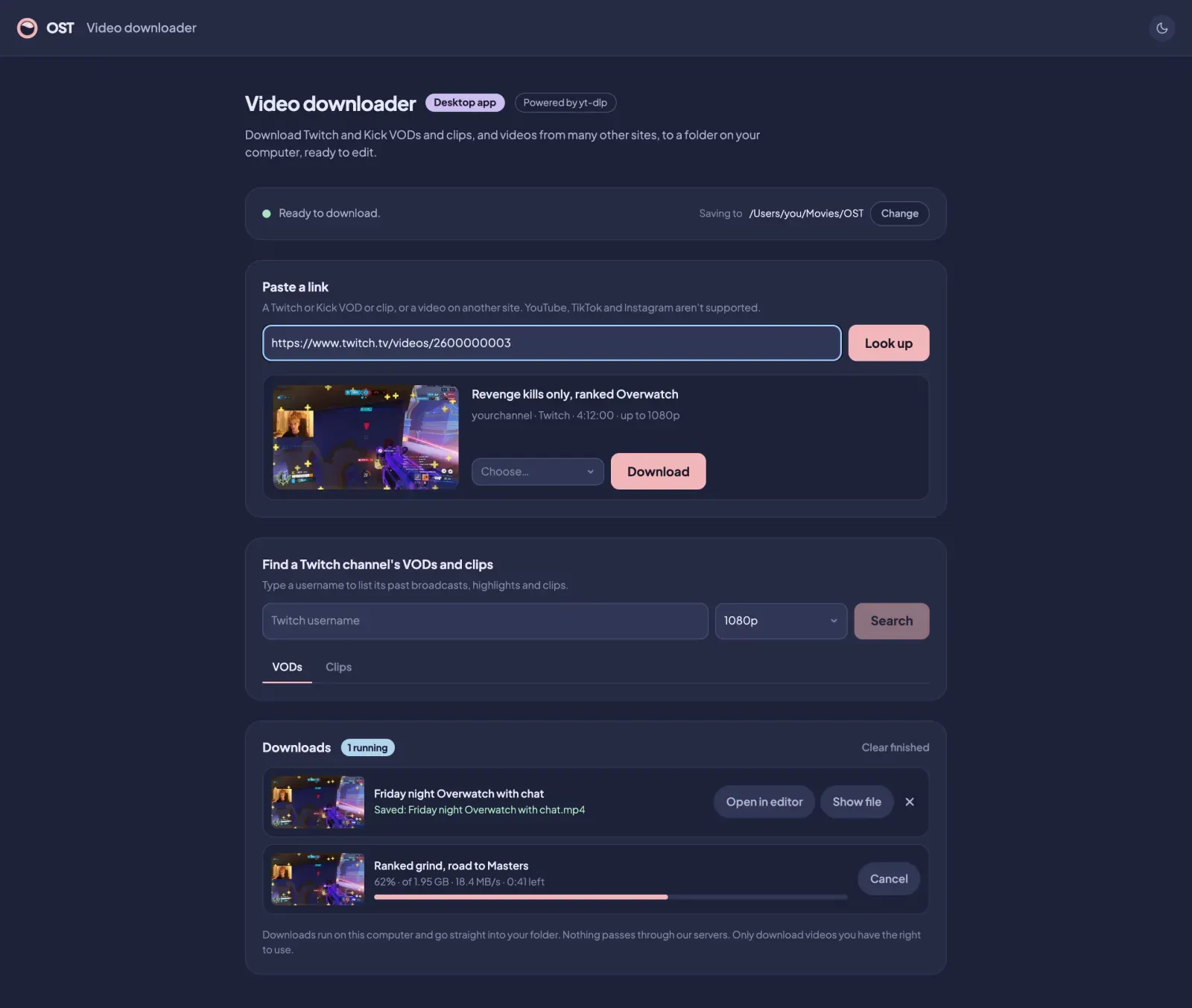
- Paste a link to a Twitch clip or VOD, or a Kick VOD. You see the title and thumbnail, pick a quality and download.
- Type a Twitch username to see that channel’s past broadcasts, Highlights and clips, each with its own download button. Handy when you want a lot of them.
- Pick the quality: the best there is, 1080p, 720p, or just the sound.
Everything happens on your own computer. Nothing you download goes through our servers.
Whose clips can you download?
Being able to download something doesn’t mean you can use it. Your own streams are yours. A clip of someone else’s stream is theirs, so ask before you post it anywhere. Many streamers are glad to have clippers, but it’s up to them.
Do you need to download at all?
Often you don’t. If the plan is to turn a clip into a short, skip the file:
- Paste the clip’s link in the editor. The OpenStreamTools editor is free and pulls the clip in from Twitch. See how to turn Twitch clips into TikToks.
- Search the whole VOD. The AI clip finder streams your VOD from Twitch while it looks for the best moments, so a four-hour file never has to land on your disk. It’s in Starter, with a 7-day free trial.
Questions streamers ask
Can you download Twitch clips?
Yes. Clips of your own channel can be downloaded from the Creator Dashboard, under Content and then Clips. For other clips you need a separate tool, and you should have the streamer's permission to use them.
How do I download a Twitch VOD?
For your own streams: open Video Producer in the Creator Dashboard, find the past broadcast, open the three-dot menu and choose Download. Storing past broadcasts has to be turned on before you stream, or there's nothing to download.
Can I download Twitch clips on my phone?
It's far easier on a computer. The usual advice is that the Twitch app has no direct download, so use the Creator Dashboard in a desktop browser.
Are Twitch clip downloader websites safe?
Be careful. Many are full of fake download buttons and ads. Stick to Twitch's own buttons, or an app you trust that doesn't ask you to install anything extra.
Is it legal to download someone else's Twitch clips?
Downloading isn't the same as being allowed to use it. The stream belongs to the streamer, so only use what you have the right to: your own streams, or someone else's with their permission.