How to clip Twitch streams for TikTok
· Updated
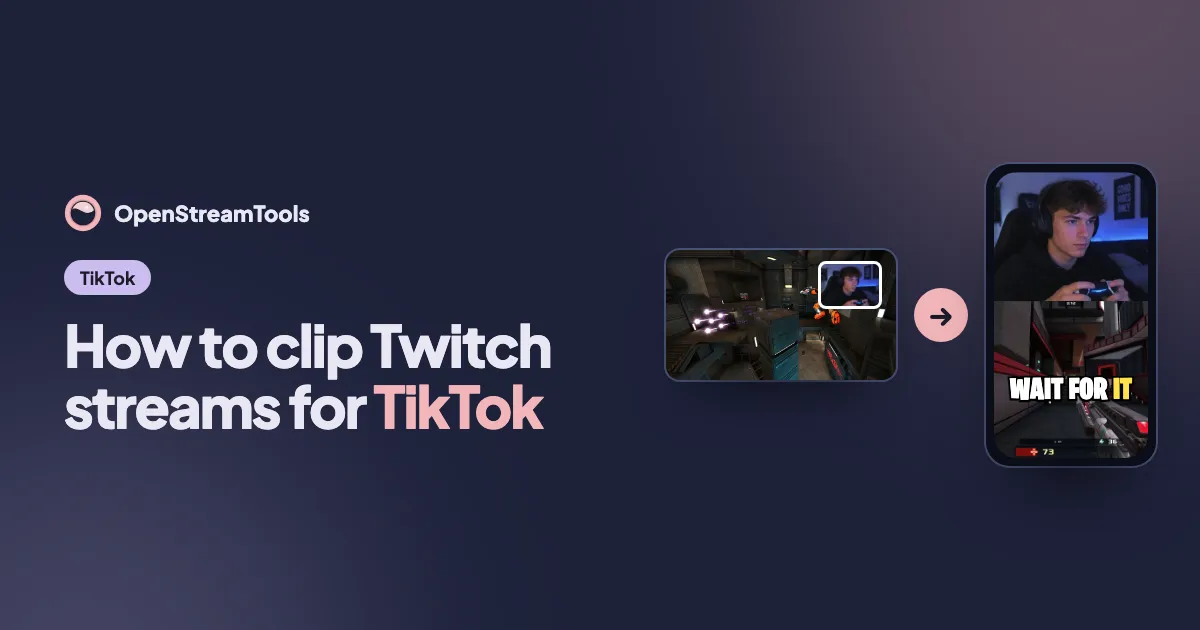
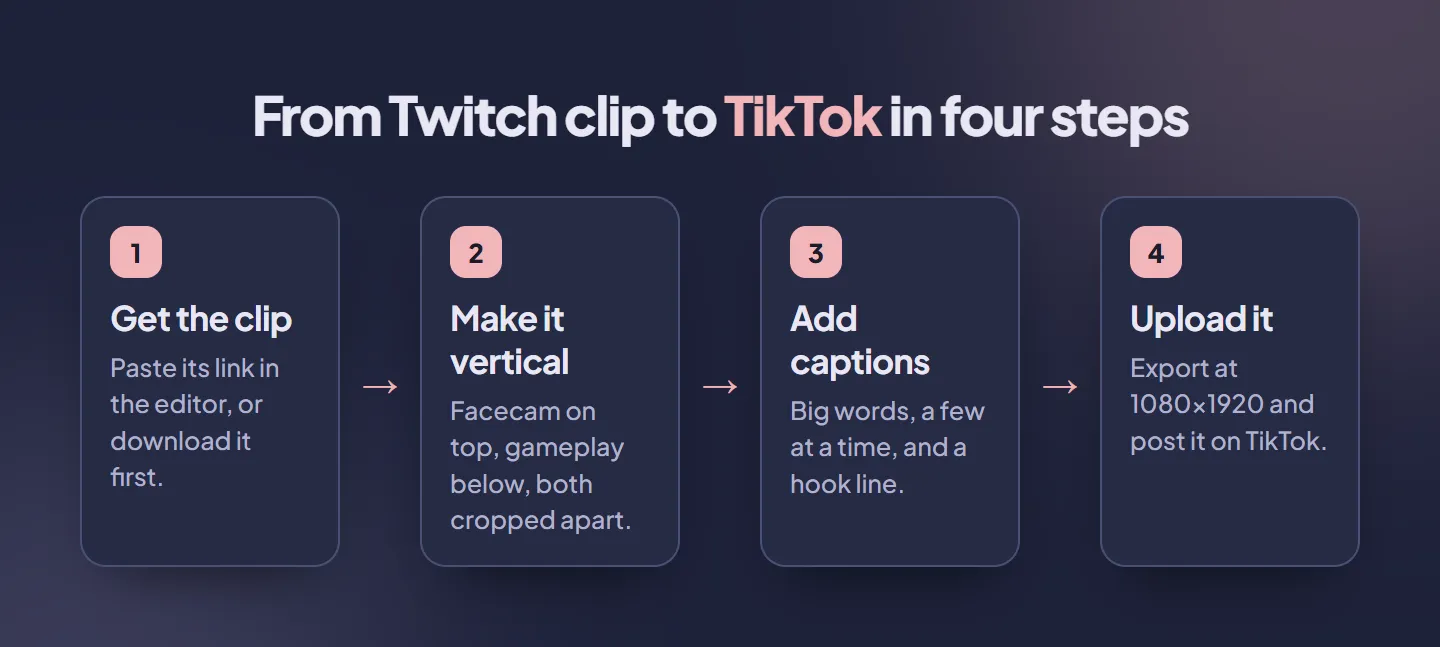
A Twitch stream is hours long, and a TikTok is 30 seconds. Somewhere in between you have to find the moment, clip it, and make it work on a phone: a Twitch clip is wide, it has no captions, and your facecam is the size of a stamp. Uploaded as it is, it gets swiped away.
Here’s how to clip a Twitch stream for TikTok, from finding the moment to the upload.
What Twitch can do by itself
Start here, because it might be enough. Twitch has a clip editor in the Creator Dashboard, under Content → Clips. It can turn a clip vertical, and Twitch says you can post from there straight to TikTok, YouTube, Instagram or Snapchat once your accounts are connected.
That’s fine for a quick post. What you don’t get is what makes a clip hold people: a real split layout, word-by-word captions, a hook line, or cutting the clip tighter around the moment. If those matter to you, read on.
Step 1: find the moment
If a viewer already clipped it, you’re done here: go to step 2. If not, the moment is somewhere in your VOD, and you have three ways to find it:
- Mark it live. Press clip (or a hotkey) the second something happens, so you know where to look later. In the OpenStreamTools desktop app, a key marks the moment in OBS for free.
- Scrub the VOD. Watch it back at double speed and note the times. Fine for an hour, slow for four.
- Let AI find it. Paste the VOD link into the AI clip finder and it reads the whole stream and gives you the moments worth clipping.
Do this soon after streaming: Twitch VODs don’t stay forever.
Step 2: get the clip
You have two options:
- Use it straight from Twitch. In the OpenStreamTools editor you paste the clip’s link and it lands on the timeline. You don’t need to download anything, and that part is free.
- Download it first. Useful if you edit somewhere else. We wrote out every way in how to download Twitch clips.
Clips stop at 60 seconds. If your moment needs longer, or starts earlier than the clip does, go back to the VOD and cut it from there: the editor takes a VOD link too.
Step 3: make it vertical
Your clip is 16:9, a TikTok is 9:16. A centre crop keeps the middle of the screen and usually cuts off your facecam, which is the part that makes people care about you and not just the game.
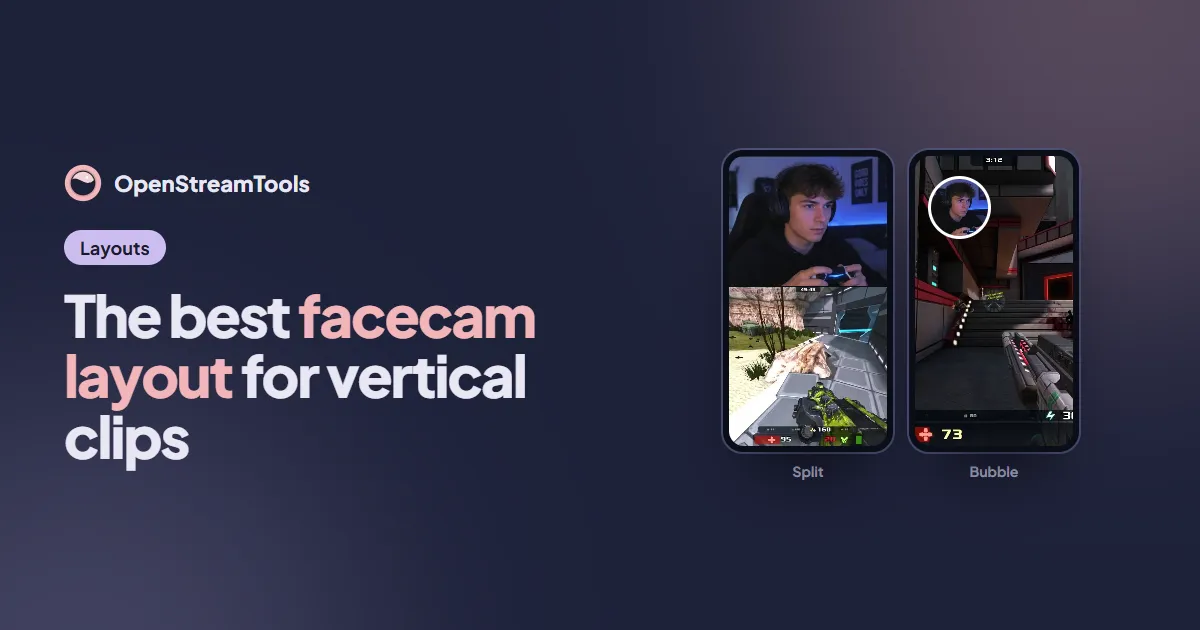
What works is a split layout: crop the facecam and the gameplay separately and stack them.
- Crop the facecam tight. Your face, not your room.
- Crop the gameplay to the action, usually the middle of the screen.
- Keep the bottom and right side clear. TikTok puts its buttons and caption there.
Not every clip wants the same layout. A skill clip can give the game more room, a story can be just your face. We compared them in the best facecam layout for vertical clips.
Step 4: cut it tighter
A clip made by a viewer usually has a few seconds of nothing at the start, because people press clip after something happens. On TikTok that’s the moment everyone leaves.
- Start right before it happens, not with the run-up.
- End when it lands. Right after the reaction.
- Cut on whole sentences. A clip that starts halfway through a word feels broken.
Step 5: add captions and a hook
Plenty of people scroll with the sound off, so captions keep them there long enough to turn it on. Keep them big, a few words at a time, with the word being said highlighted. Then add a short hook line for the first seconds: “He did NOT see that coming.”
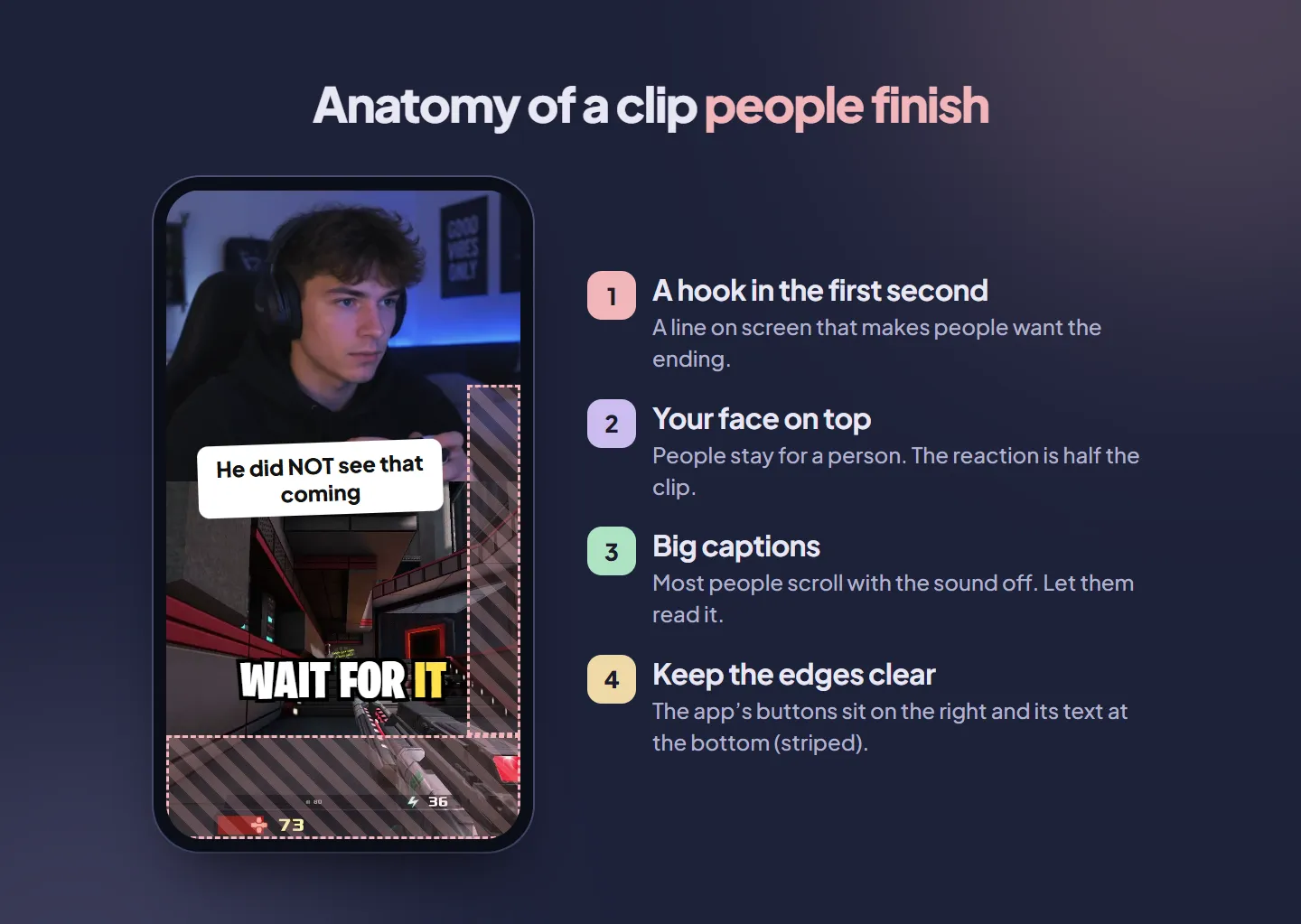
Any clip editor for TikTok should let you do this. In OpenStreamTools, styling text is free and automatic word-by-word captions are in Starter, because they use AI.
Step 6: export and upload
Export an MP4 at 1080×1920. Then upload it in the TikTok app, or at tiktok.com on a computer.
- Write a caption that adds something, not just the game’s name.
- Use a few hashtags for the game. Three good ones beat twenty.
- Mind the music. A song in the background of your stream can get the video muted.
What happens after you post is its own topic. Our guide on making Twitch clips go viral on TikTok covers what keeps people watching.
Skip the clip altogether
Twitch clips only cover what someone thought to clip. The best moment of your stream might not have one. That’s what the AI clip finder in OpenStreamTools is for: paste a VOD link and it finds the moments in the whole stream, already vertical, framed and captioned. Post them to TikTok straight from the app, and to YouTube and Instagram at the same time.
Questions streamers ask
Can I post a Twitch clip straight to TikTok?
Yes. Twitch's help pages say you can post a clip directly to TikTok, YouTube, Instagram or Snapchat. For a clip of someone else's channel, that only works if the streamer has turned it on. You get Twitch's simple vertical crop, so for a split facecam layout and captions you need an editor.
How long can a Twitch clip be?
Up to 60 seconds, according to Twitch. For a longer moment, cut it from the VOD or make a Highlight instead.
What size should a TikTok from a Twitch clip be?
1080×1920, which is 9:16. Export an MP4 with H.264. Your Twitch clip is 16:9, so it has to be reframed, not just stretched.
How do I keep my facecam and gameplay both visible?
Use a split layout: crop the facecam and the gameplay separately and stack them, facecam on top. A plain centre crop usually cuts your facecam off.
Can I use someone else's Twitch clips on TikTok?
Ask first. The streamer owns their stream, so get their permission. Plenty of streamers are happy to have clippers, but it's their call.