Post your clips to TikTok, YouTube and Instagram at once
· Updated
Until now, the last step was always the same: export the clip, open TikTok, upload it, write the caption, then do it all again for YouTube Shorts and again for Instagram Reels. Three apps, three uploads, three times the same hashtags.
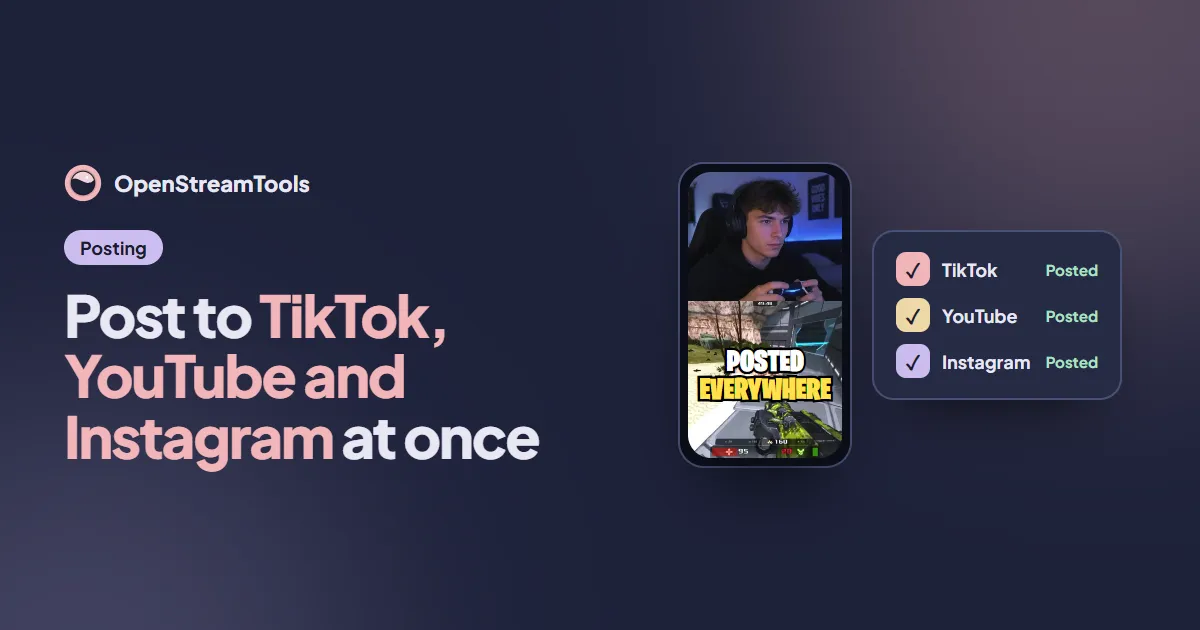
Not anymore. OpenStreamTools now posts to TikTok, YouTube Shorts and Instagram Reels, all three at once.
How it works
- Connect your accounts once. TikTok, YouTube and Instagram, under Connected accounts. They belong to your team, so an editor you invite can post to them too.
- Edit your clip in the editor, or take one straight from the AI clip finder.
- On the export page, pick where it goes. Write a title, a caption and hashtags once, and pick the cover frame. You see the exact text each account gets before anything is posted.
- Post now, or pick a day and time. Every account gets its upload at the same moment, side by side, so a slow one never holds up the rest.
What each platform gets
Every platform has its own rules, and the app follows them for you:
- TikTok: you choose who can see it and whether people can comment, duet and stitch, each time, as TikTok asks every app to. Branded content can be marked as a paid partnership.
- YouTube Shorts: the title becomes the Short’s title, and the caption and hashtags go in the description.
- Instagram Reels: Instagram takes up to 1080p, so when you export in 4K it gets its own 1080p version. The others keep the full quality.
The calendar
Everything you schedule shows up on your calendar. From there you can move a post to another day, retry an account that failed (the ones that posted are left alone), or cancel it. Posting one clip a day from your last few streams keeps every channel active on the days you don’t stream.
What it costs
Posting comes with Starter and Pro, together with AI captions, the profanity filter, silence removal and the AI clip finder for whole streams. Starter is €15 a month, with 75 hours of stream a month, and Pro €25 for 225. No credits, and no charge per post or per account.
The editor itself stays free, with 4K export and no watermark. On the free plan you export the MP4 and upload it yourself, the way you always did.
Make the clips worth posting
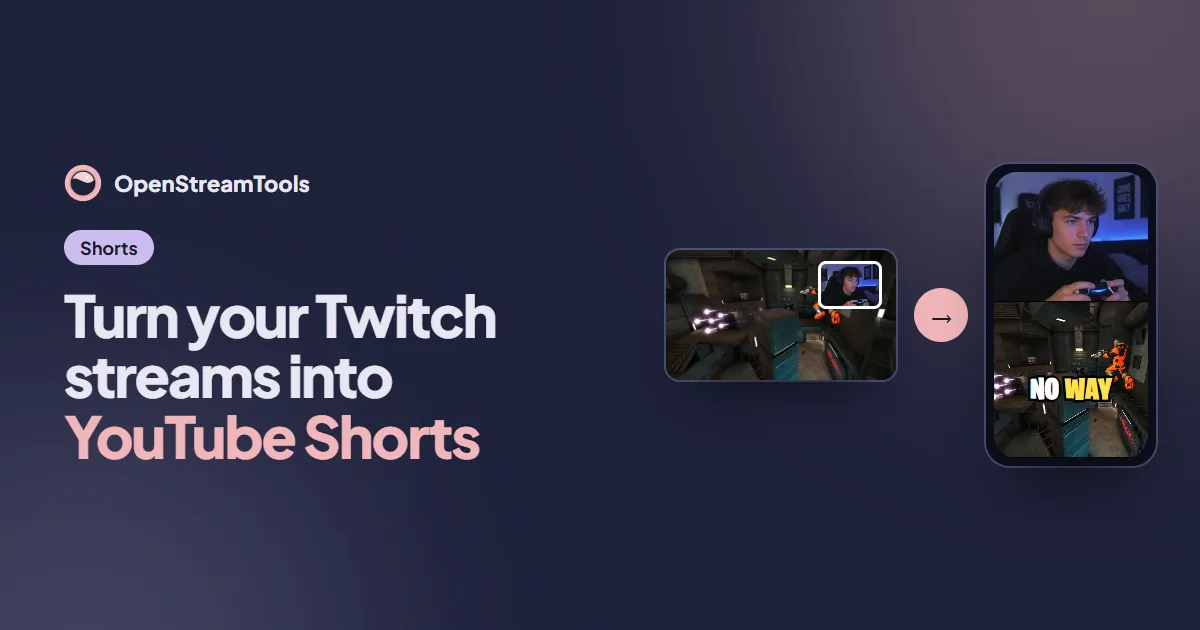
Posting everywhere only helps if people watch to the end. Our guides on making Twitch clips go viral on TikTok and turning your streams into YouTube Shorts cover the hook, the framing and the captions that make that happen.
Questions streamers ask
Can OpenStreamTools post to TikTok?
Yes. Connect your TikTok account once, and post a finished clip straight from the export page, on its own or together with YouTube and Instagram.
Can I post to TikTok, YouTube and Instagram at the same time?
Yes. Pick the accounts, write the caption once and press Post. The three uploads run side by side, so a slow one doesn't hold up the others.
Can I schedule posts?
Yes. Post right now, or pick a day and time. Scheduled posts show on your calendar, where you can move them, retry one that failed or cancel it.
Which plan do I need to post?
Starter or Pro, both with the AI clip finder; Starter is €15 a month. The editor itself is free, and on the free plan you can still export the MP4 and upload it yourself.
Does Instagram get the same quality as TikTok and YouTube?
Instagram takes up to 1080p, so it gets its own 1080p version when you export in 4K. TikTok and YouTube get the full quality.